
Copilot Agent monitoring and governance tools have continuously developed for the better. They are not ready yet, but you can already do many expected things by combining one or several tools.
Today, we already have ways to list and monitor different agents from the tenant, but one constant question has been how to tell what SharePoint Agents (SP Agent) we have in our tenant?
The custom script is available from my GitHub repository: MikkoKoskinen/ListSPAgent-PnPPowerShell: Use PnP PowerShell to list SharePoint Agents (.agent files).
A Few General Notes
As you might know, SharePoint Agents are a special type of declarative agent that the user can create and use in the context of SharePoint. SP Agents are saved as documents inside the document libraries on the SharePoint site.
- If you start to create the agent from a document library, the agent is saved in the same library and folder from which you started the creation process.
- If you start to create the agent from the New menu on the home page, the agent is saved under the Copilot folder in the Site Assets library.

As we can see, the SP Agent is practically a file with a special agent extension. This is why the permissions and access to the agent follow the same principles as any other document in SharePoint. This also means we can use this document embodiment when doing the listings.
Created Agents Inventory

Microsoft offers a way to create an inventory of SP Agents across sites. There is a PowerShell function in SharePoint Online Management Shell for this purpose.
The report can be generated by using the Start-SPOCopilotAgentInsightsReport and Get-SPOCopilotAgentInsightsReport cmdlets. The report consists of all the agents that are created during the given time. The possible values of ReportPeriodInDays are: 1, 7, 14, 28.
This also means that the report is only capable of listing the latest created agents, not a full listing of agents in general. To get a full listing, we need to use another approach.
List of SP Agents – PnP PowerShell

I created a PnP PowerShell script that you can use to create a listing of all SP Agents across SharePoint sites. The script uses a search to get the agent documents and returns the details in a CSV file. The list consists of all agents found from the index, no matter when they were created.
The script is available from my GitHub repository: MikkoKoskinen/ListSPAgent-PnPPowerShell: Use PnP PowerShell to list SharePoint Agents (.agent files).
Script Documentation
The most important thing to notice is that the process needs full access to SharePoint to get a complete inventory of the agents.
This means that you need Global Admin privileges to give the necessary consent for the Entra Application. I also know that this need might be harder to fulfill in some organizations because of the possible security concerns. It’s essential that you discuss with your application and Entra ID administrators beforehand.
Because the connection is so powerful, I think this script and tool are meant only for a limited governance personnel. The script is not meant to be used by every user or SharePoint site owner.

In the first part of the script, we set the necessary parameters and format an array for the found agents. Then we open a connection to SharePoint. The connection is saved to a variable for future needs.

The following sections are the key parts to get the necessary information. First, we create and run a search query against SharePoint. We set the duplication trimming to false to ensure each agent is listed. I’ve noticed that it’s pretty common for users to create duplicate agents against the same SharePoint site with the same name. We also use the All parameter for a complete inventory.
The search result is saved to a variable $SPAgents.
After this, we loop through the found agents to read their information. Note, this might be the place where changes are needed for pagination or faster array handling if the found items amount is large. But for a few thousand items, I think this is okay enough of a process, although it might take some time to run the script. But the ultimate speed is not necessary here.

We checked and saved the agent details in the last section to an array. The search result from the query can be found in the table, which is a parameter inside the $SPAgents variable. This is why we loop through each result.
We use a separate $row variable to save only the needed details in a structured format. There are more details in the search results, but I selected only the most important ones. The structured row is then added to the agent list.
- Agent name, author, and location details
- Creation and modification details
- Details of the list where the agent is saved
- The document usage details
Note that the usage details are the out-of-the-box SharePoint document view details, and I’m not sure how well they match the real usage details with these agent types.)
Finally, we export the agent list in a CSV file, which is saved to the given folder.
Using the Script
First, you must install the latest PnP PowerShell module if you haven’t already done so. The module is built to use PowerShell 7, which might also be something you need to install. There is a good instruction for that in the module GitHub: https://pnp.github.io/powershell/articles/
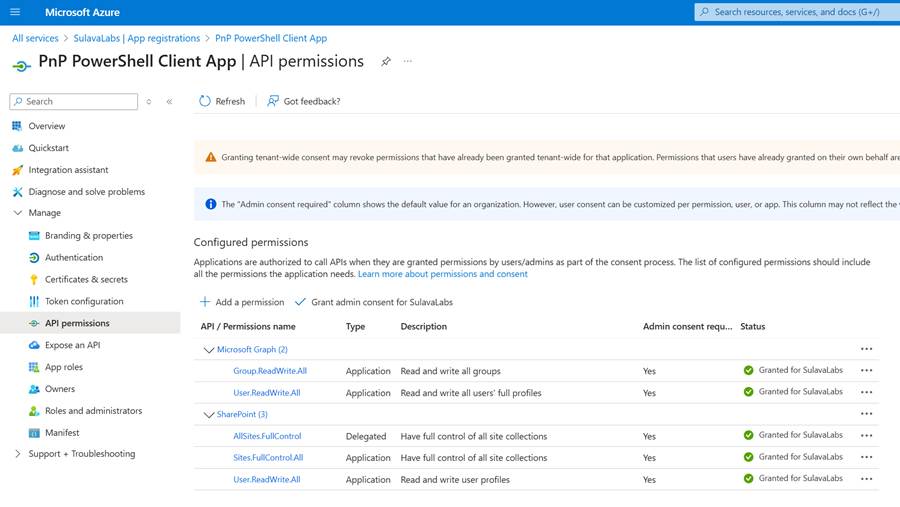
The script needs to be run as a non-interactive application connection to have full access to all the sites. This can be done based on these instructions: https://pnp.github.io/powershell/articles/registerapplication.html#setting-up-access-to-your-own-entra-id-app-for-app-only-access
Make sure also that the Entra app used in the connection has access to read all SharePoint sites: https://pnp.github.io/powershell/articles/determinepermissions.html
Secondly, you need to decide what method to use for the authentication. The base script uses the Non interactive Authentication using a certificate file method. This means you need to save the PFX created during the Entra App registration process in some location on your local machine to run the script.
Thirdly, download the .ps1 file from the Git repository and make sure you update the attribute details in the given placeholders.
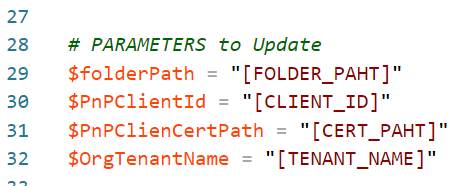
- $folderPath = The path to the folder where the CVS list is saved (for example, C:\Temp\Exports)
- $PnPClientId = The ID of the Entra application used while connecting to SharePoint (for example, xxxxxxxx-b5d4-4f79-9947-88bd96e3907f)
- $PnPClienCertPath = link and path of the certification file (for example, C:\Temp\PnP PowerShell Client App.pfx)
- $OrgTenantName = tenant name of the organisation (for example, mysptenant)

Lastly, open a PowerShell 7 console and run the List-SP-Agents.ps1 script. It takes some time to run, depending on the size of your tenant and the number of found agents. The script writes the agent details to the console while it runs.
After the script is finished, a CSV file is saved into the folder you provided as a parameter earlier. This file holds the basic details of the agents, author, and creation times. For example, you can export these details to Excel for better readability.




 Mikko Koskinen
Leave a reply to Guide to SharePoint Channel in Copilot Studio – Mikko Koskinen Cancel reply