
The new Copilot Studio agents are here and available in your tenant. The speed of the changes and upgrades is almost overwhelming currently. This is why I decided to gather my best understanding and knowledge of the most important things to know and consider around Copilot Studio and Copilot Agent governance.
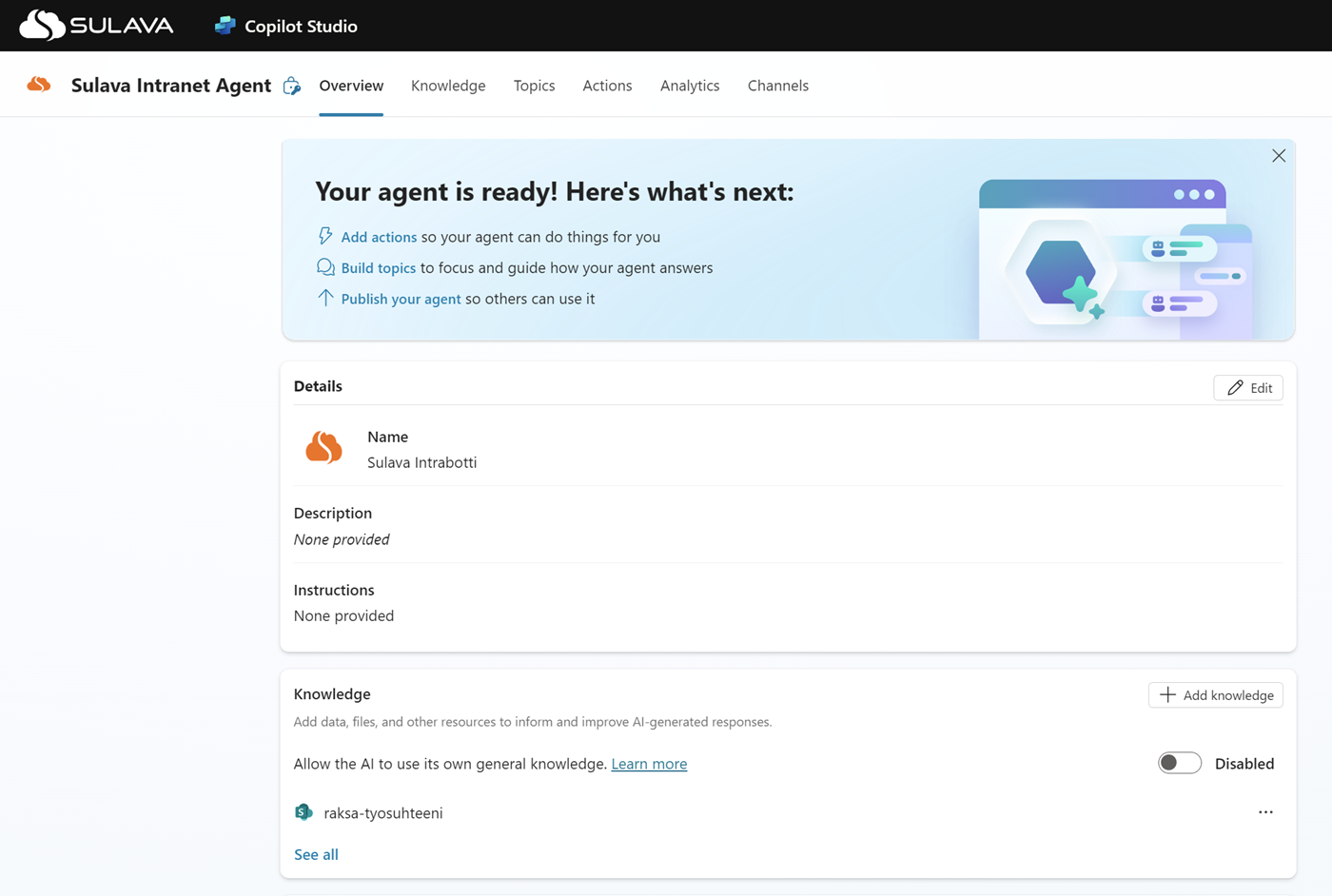
This is not the ultimate governance guide that covers all the necessary information and settings. I think these are the most important things to understand in the first phase so that you will have more time to investigate and build your governance controls and services for this matter.
Quick Links
- Power Platform Governance
- Data Loss Prevention Policies
- Agent Sharing and Permissions
- Licensing Needs
- Turning Off the Generative AI Features
- Future Considerations
There are a few terms to clarify:
- M365 Copilot = Microsoft 365 Copilot service with a separate license inside tools like Teams, Word, PowerPoint, etc.
- Custom Agent = A standalone agent or bot created with Copilot Studio and used through services like Teams, SharePoint, webpage, etc.
- Copilot Agent or Copilot Extension = An agent or bot built through M365 Copilot Business Chat (BizChat) experience or with Copilot Studio that will extend the capabilities of the M365 Copilot service.
Power Platform Governance
First, Copilot Studio is positioned to be the most important tool for extending M365 Copilot and creating agents. The tool belongs to the Power Platform architecture, meaning you need to take care of your Power Platform environment’s settings and governance practicalities.
If you don’t have the Power Platform governance practicalities, model, and team setup, you should start today. We cannot go through everything, but here is some information.
Admin and governance best practices – Microsoft Power Platform – Power Platform | Microsoft Learn
Security and governance considerations in Power Platform – Power Platform | Microsoft Learn
At the beginning of the governance journey, you need to develop and implement your plan for environments, security, and data protection policies. Put in place how you want teams to work with you to deploy new applications and establish an ongoing cadence for updates.
Focus on gaining a good understanding of what you have in place already. Take time to learn your organization’s goals for the platform and how you can help them succeed.
- Get familiar with the Admin Portals
- Train your IT personnel for Power Platform and its administration
- Install the Center of Excellence starter kit.
- Current State Analyze – understand your power app flows and who has created them.
- Plan and create some default Data Protection Policies
- Plan and set up your monitoring practices
Data Loss Prevention Policies
Data Loss Prevention (DLP) is important to maintaining data security and compliance within the Microsoft Power Platform. You can create data policies that act as guardrails to help reduce the risk of users from unintentionally exposing organizational data.
Data Loss Prevention (DLP) policies – Power Platform | Microsoft Learn
Basically, you can block desired data connections (SQL, Azure File Share, etc.) as available ones from your environment or then decide that users cannot create applications or flows that are mixing different connectors, like SharePoint and consumer Mail service.
What if you don’t want your users to be able to create an agent with company data that the end-users can use anonymously without authentication on some websites—without your knowledge and approval, at least?

This is where the Copilot Studio DLP settings come into play. There are several DLP settings that you can use to control the capabilities of the agents in the environment. If your users want to do something that you have set as not allowed in the DLP policy, they need to contact you first so that you can discuss the need and make sure the agent is built in a controlled environment with controlled way.
Phase Rule Recommendation
You can make your own settings, but my phase recommendation is to allow the use of relevant connections so that users can create agents for the organization’s most common needs. You should block more advantageous connections to control who can use the features and ensure the development and agent usage following your organization’s safety and other regulations.
For example, to prevent anonymous agents, block the Chat without Microsoft Entra ID authentication but allow Microsoft Teams, SharePoint/OndeDrive, documents, and application Insight connectors.
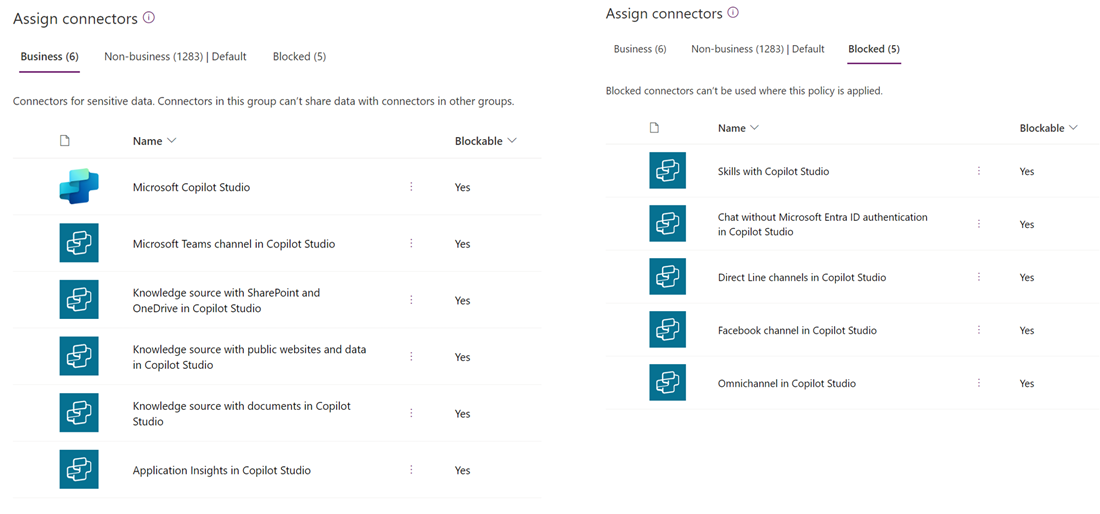
Note – the Microsoft Copilot Studio connector does not block or allow the Copilot Studio agents as a whole. The connector prevents the user from calling and sending messages to an agent from Power Automate or apps with a connector.
Activating Copilot Studio DLP’s
Unlike other DLP settings, you must ensure the Copilot Studio ones are activated in your tenant. The steps are because some agents or older Power Virtual Agents might already be used in the tenant, and activating the settings might influence those.
Most likely, the Copilot Studio DLP settings are not activated for the existing tenants. This means that even though you make the DLP settings mentioned above, those changes would not affect the agents’ usage.
Power Platform or Global Admins can only activate it through a Power Shell. The needed command can be found on Microsoft.PowerApps.Administration.PowerShell and Microsoft.PowerApps.PowerShell modules.
To activate the DLP settings, you can use the command Set-PowerVirtualAgentsDlpEnforcement -TenantId <tenant ID> -Mode Enabled.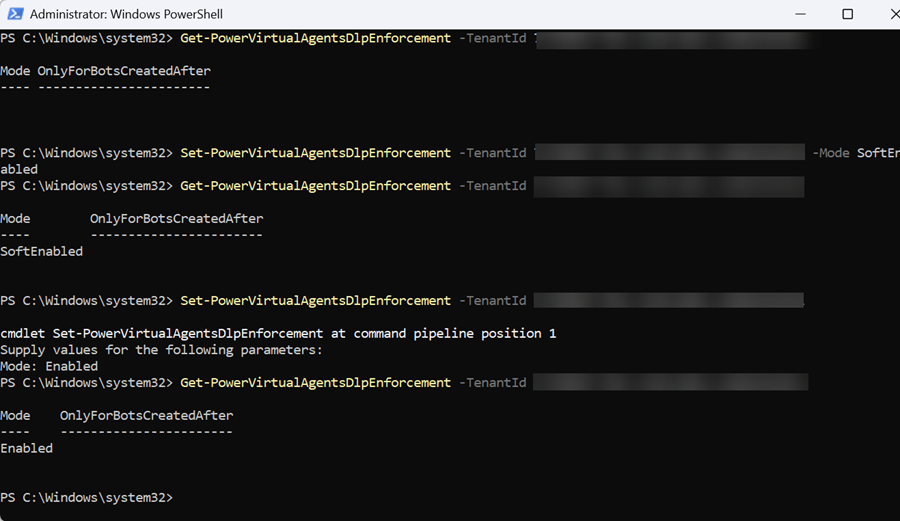
There are also commands to set the learn-more and admin contact email links, which will be shown to the end-user if their agent is affected by the DLP settings. You can also activate the settings in soft mode, which will start to indicate a potential issue to the agent makers but won’t prevent their usage. Another option is to activate the DLP settings only for a new agent starting from a desired date.
You can also bypass the DLP settings with a DLP-exempt command targeted at the bot level.
Detailed information and commands: Configure data loss prevention policies for copilots – Microsoft Copilot Studio | Microsoft Learn
End-User Effect
Copilot Studio DLP settings affect the agent creation experience like any other DLP setting for an app or flow. If users try to use a connection that is not allowed, they will see an error message indicating that DLP rules have been broken.
The only thing is that the error messages with the Copilot Studio DPLs are not as easy to interpret as the regular ones. I noticed some confusion around this when we activated the rules.
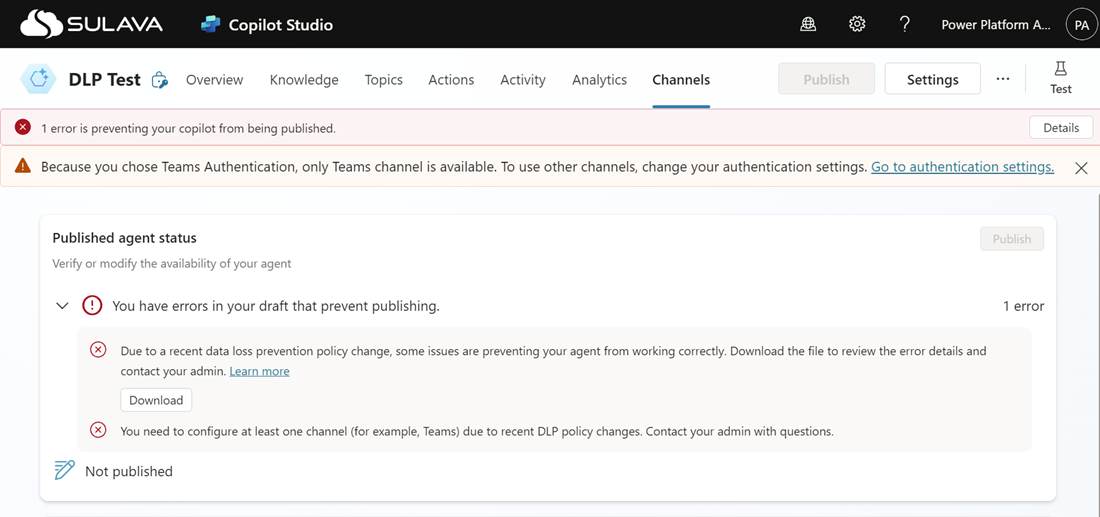
In this case, we blocked the capability to create an agent without Entra ID authentication. A noticeable red banner says there are errors, and something is preventing the bot from being published. Users were sending us tickets because they thought that the agent was broken.
In reality, you can use the Teams channel and publish the agent after enabling the Teams connection, which they would have done in many cases. Other channels and publishing will be available after the Entra ID connecting is set from the Authentication Settings. In most situations, we didn’t need to make any changes to the DLP settings after giving the instructions to the makers.
Also, notice that the DLP warning sometimes takes a while to disappear after you have made the necessary settings. Sometimes, you must refresh the page before the Publish button is activated.
Agent Sharing and Permissions
Many aspects relate to solution (apps, flows, agents) permissions and sharing rules. Now, let’s go through the basics of the different types of agents and their considerations.
Custom Agents
Custom Agents or standalone bots have the most advantages in selecting security and permissions settings. At a high level, you can decide on which channel you want to publish the agent, and depending on the channel, you can set the access for individual users or groups. You also need to ensure the end-user can access knowledge sources or services to which the actions are connected. Depending on the data source, you can use the user’s authentication details on run time to access the details.
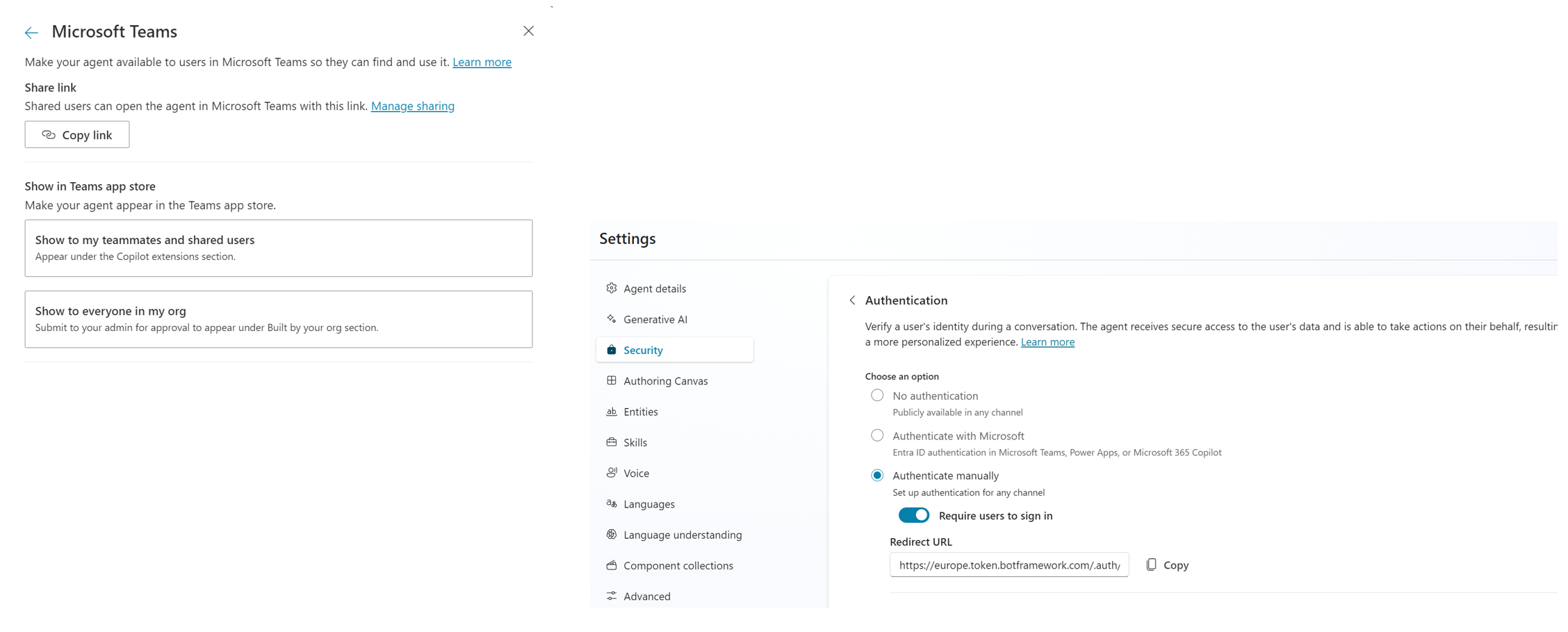
In the case of a Teams channel, you can set the availability options from the Teams channel settings in the desired way. For other agents needing authentication, you must set up an Entra ID application that authenticates the users against the agent and its data sources. The Entra ID app details are set in the agent’s Settings menu.
More details about Copilot Studio publishing and security settings:
Configure user authentication – Microsoft Copilot Studio | Microsoft Learn
Key concepts – Publish and deploy your copilot – Microsoft Copilot Studio | Microsoft Learn
BizChat Agents
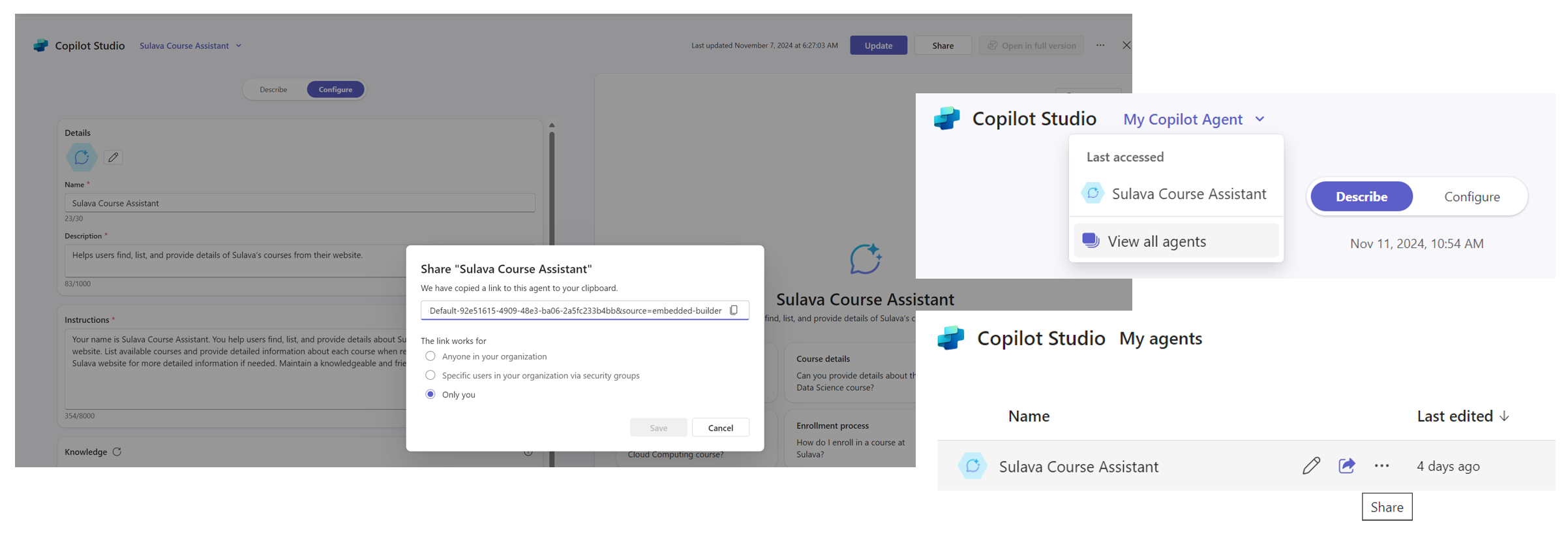
By default, the agents created through the BizChat experience are personal; only the maker can access them. Owners can share the agent for individuals or groups through the sharing settings. The Share setting is available while editing the agent or opening the Create agents windows, selecting View all agents from the menu, and clicking the Share button for the desired agent.
The security setting requirements might change in the future when the full Copilot Studio agents are available in the BizChat.
SharePoint Agents
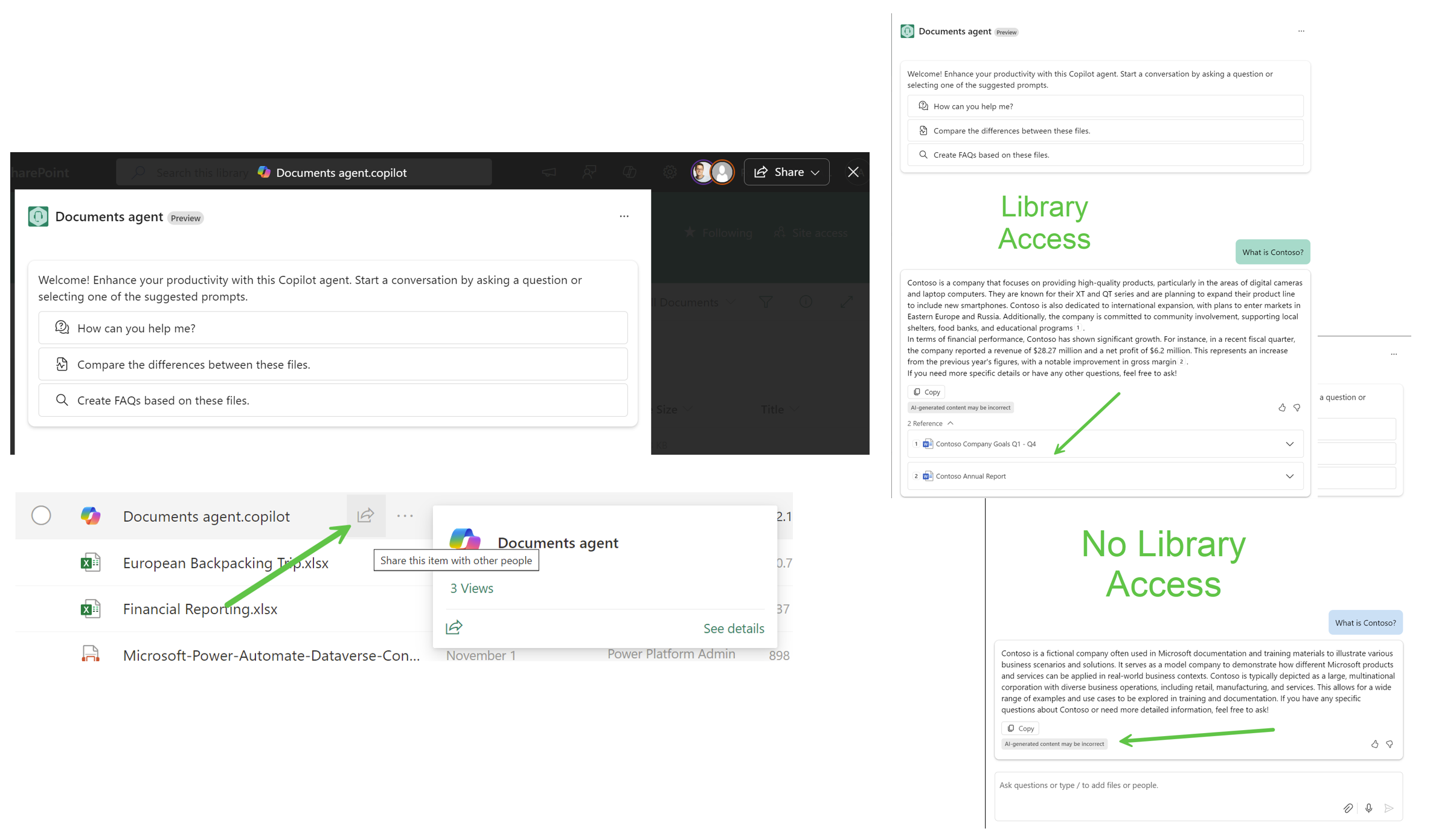
With the agents created in SharePoint, the security and sharing settings comply with the security settings of the site or document library. The agents are saved as documents inside the document library. Only those with access to the library can use the agent.
A Share functionality is available for the agent where you can set the permissions and get sharing links. With a link, you could share the agent in the document library for a person who doesn’t have access to the site or library. In these cases, only the access to the agent is shared. The data sources or documents connected to the agent are not automatically shared.
Licensing Needs
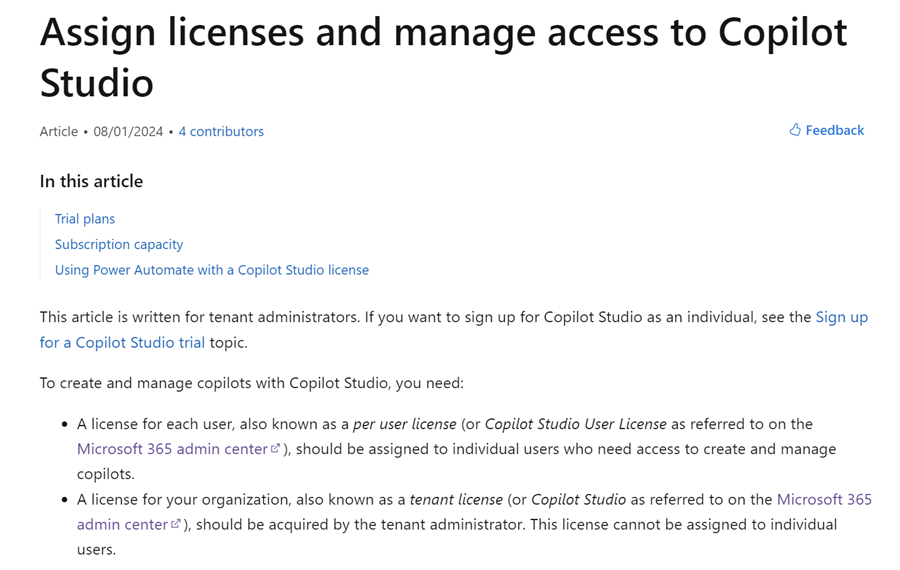
There are a few license factors to consider when considering what is needed to use and create agents with Copilot Studio. Other combinations are also available, but I will concentrate on the most relevant ones – the Copilot Studio License and Microsoft 365 Copilot Studio License.
https://learn.microsoft.com/en-us/microsoft-copilot-studio/requirements-licensing?tabs=web
The most powerful combination is to have both licenses for your end-users.
- For Custom Agents: You will need a tenant-level Copilot Studio subscription to publish independent agents for production (such as the Teams app) for your end-users.
- You will need to add a Copilot Studio User License for the agent creators.
- These user licenses belong to the tenant-level subscription, but you still need to order and assign them to the users.
- There is also a trial version of the Copilot Studio User License that your users can acquire (if trials are allowed), or you can assign them normally from the tenant Admin center.
- For Copilot Agents: Your users will need the Microsoft 365 Copilot license to create and use agents in M365 BizChat and other Copilot services.
To the Gray Area
There are also some gray areas where you can do something, but the actions do not align with licensing regulations. Many keep asking about these, so I decided to cover them for general knowledge.
Disclaimer: I’m not a licensing expert, and you should always contact your Microsoft or license representative to verify the proper license is for your needs. You should not take advantage of possible actions that are clearly against the licensing requirements.

Power Platform License Guide: https://go.microsoft.com/fwlink/?linkid=2085130
With only the Microsoft 365 Copilot license, you can create extensions for M365 Copilot and create standalone Copilot Agents with the Copilot Studio. The standalone agents can also use premium features during the creation and test time, but you cannot publish them. Based on the license regulations, you should not create standalone agents with only this license.
With only the Copilot Studio User License, you can create standalone Copilot Agents with all capabilities and premium features. You can also create M365 Copilot extension agents and even publish them. However, you cannot use the agents without a proper M365 license. Based on the license regulations, you should not create the M365 Copilot extension with only this license.
Turning Off the Generative AI Features

Turn on copilots and generative AI features – Power Platform | Microsoft Learn
If you turn off the Generative AI capabilities from the environment, you can create a Copilot Studio agent but cannot use any generative AI capability. Basically, you can only do the traditional power virtual agent-level bots.
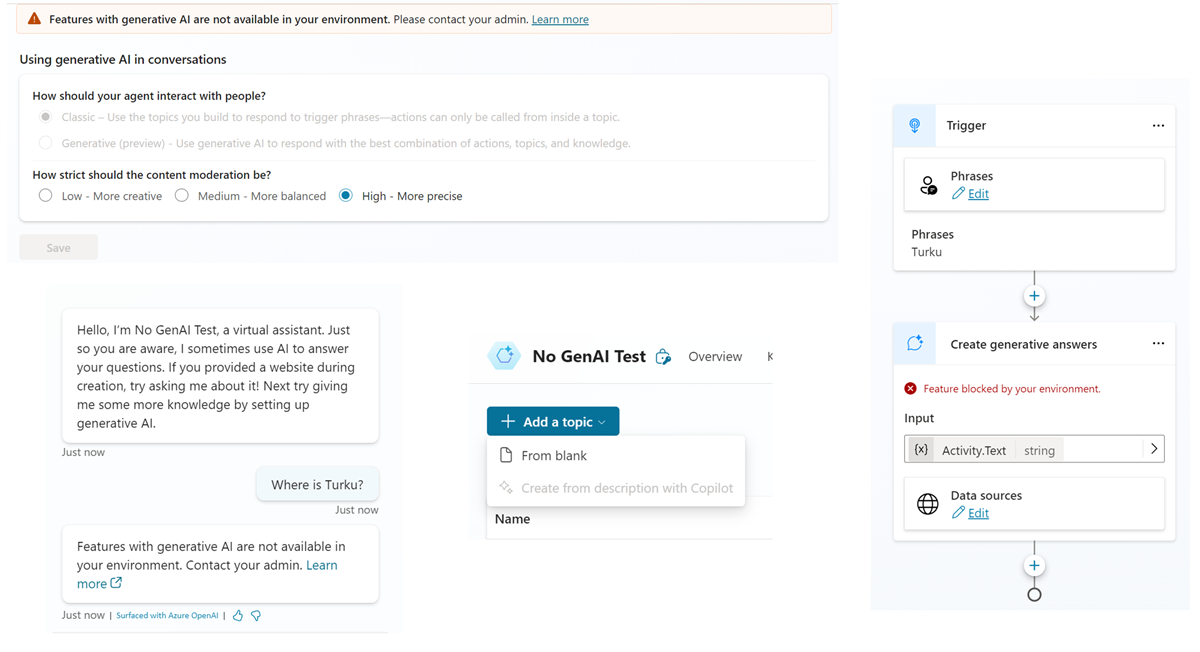
SharePoint and BizChat Agents When Generative AI Are Off
Even if the Gen AI capabilities are turned off, you can create declarative agents through the Library section. You can even test them and get the Gen AI to work in the edit mode. But you are unable to publish the agents.
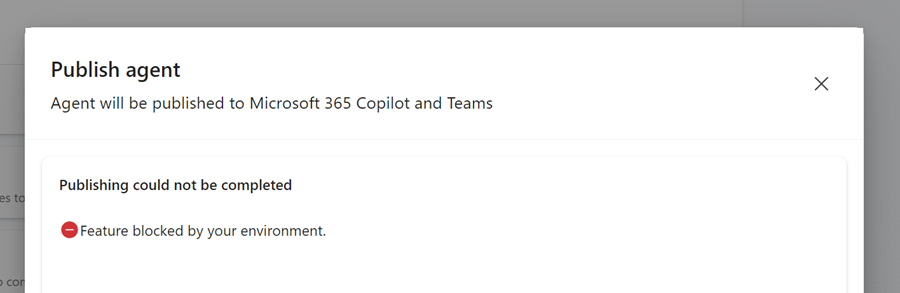
Power Platform Default Environment
Let’s remove the Gen AI capabilities from the default environment. This seems to be where, for example, BizChat agents are created. The existing agents are not affected by this change.
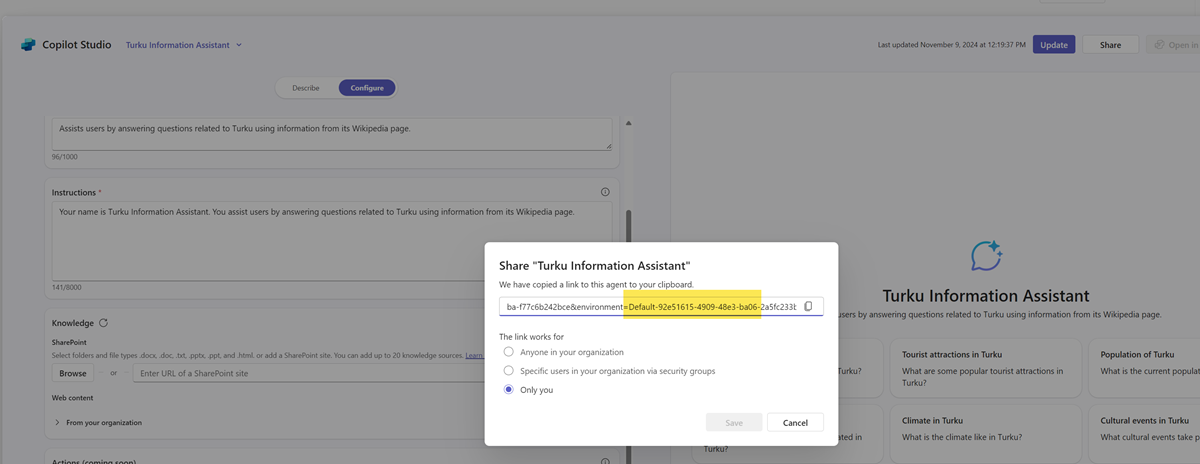
A declarative agent created by Copilit Studio will be blocked in this situation, just like in the example above, where the Gen AI capabilities were turned off from a regular environment. The users are not able to publish the agent.
However, users with Microsoft 365 Copilit licenses can create agents through the BizChat experience. The agent seems to work under the default environment, although the Gen AI is turned off.
Future Considerations
Understanding and controlling these basic settings and governance areas will give you a good start for a more secure and value-adding environment for agents and extensions. But as I said earlier, there are many more things to cover and consider when going further.
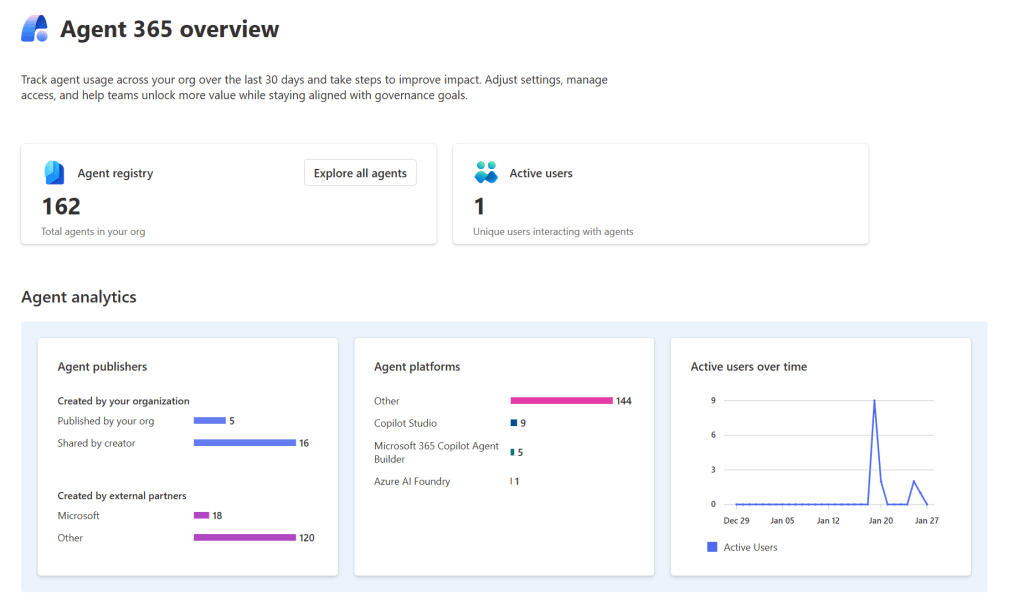
Learning how to monitor agents’ usage using different reporting tools, such as agent-level analytics, billing reports in the admin center, or reporting in the CoE tool, will help.
Important log information also concerns the agents and Copilot Studio usage added to the tenant Microsoft Purview compliance portal. You should arrange and agree to how these details are monitored. Also, consider that Copilot Studio supports the sensitivity labels for SharePoint data sources for knowledge or generative answers.
As said, Copilot and agent governance, monitoring, and security hardening are not only one-time activities. It’s an ongoing process that you take as a part of your overall IT governance.
Security and governance – Microsoft Copilot Studio | Microsoft Learn
Create and manage custom solutions – Microsoft Copilot Studio | Microsoft Learn
Key concepts – Analytics – Microsoft Copilot Studio | Microsoft Learn
View audit logs – Microsoft Copilot Studio | Microsoft Learn
View sensitivity labels for Sharepoint data sources – Microsoft Copilot Studio | Microsoft Learn



 Mikko Koskinen
Leave a comment