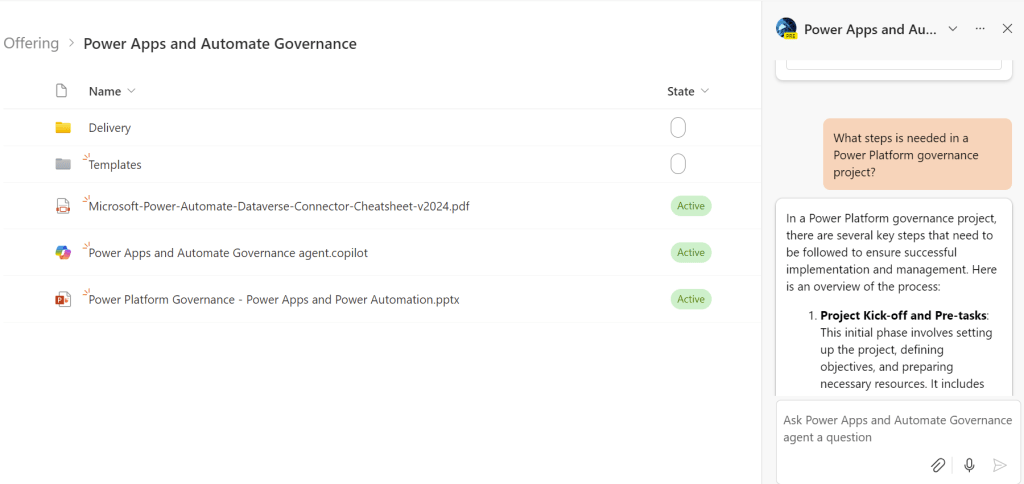
Copilot Agents in SharePoint landed with Sulava’s production tenants today.
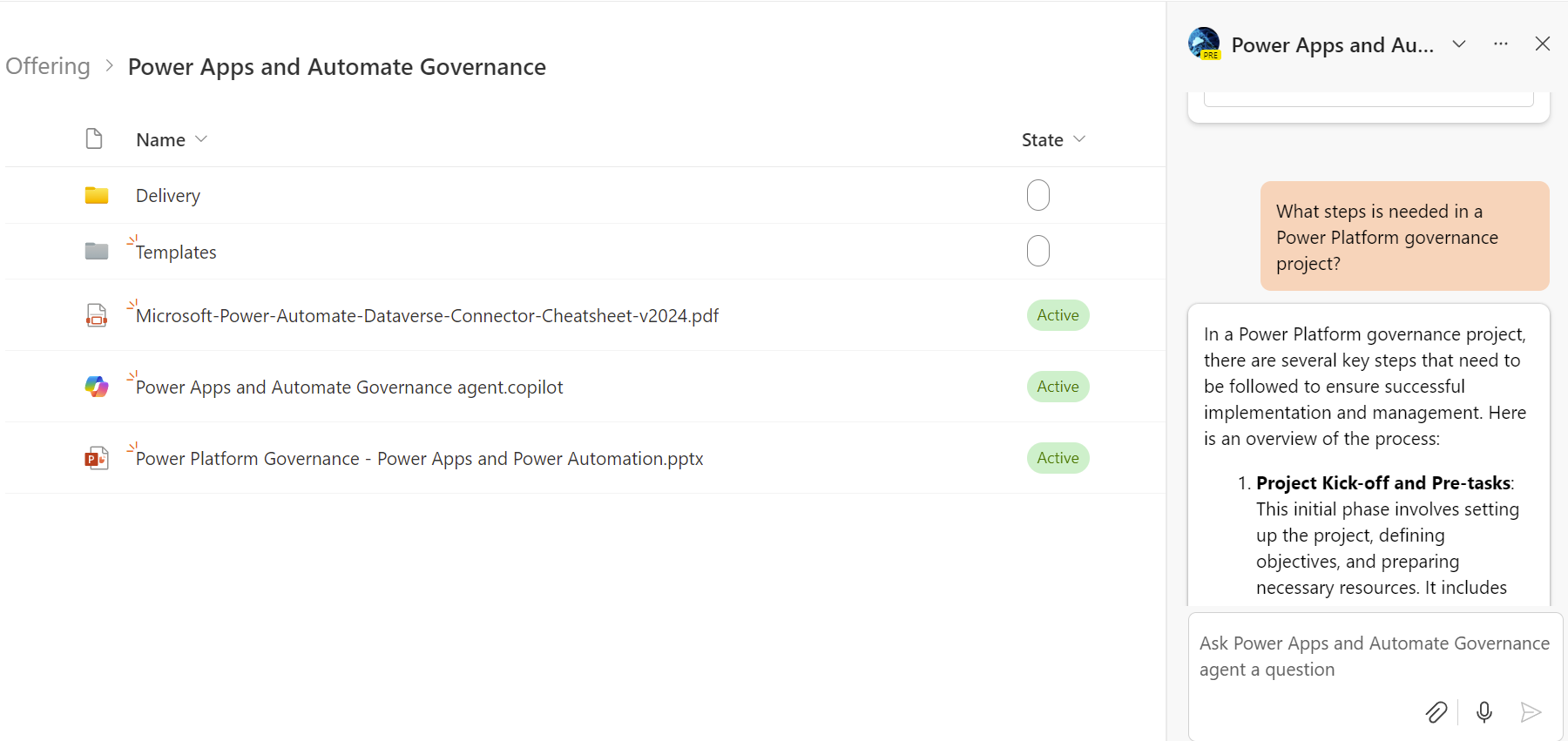
These agents are services that you can use to create small conversational bot services based on given data. In the case of these SharePoint agents, the data is selected documents in the given SharePoint document library. Creating an agent is super fast and easy to do.
Quick to Create
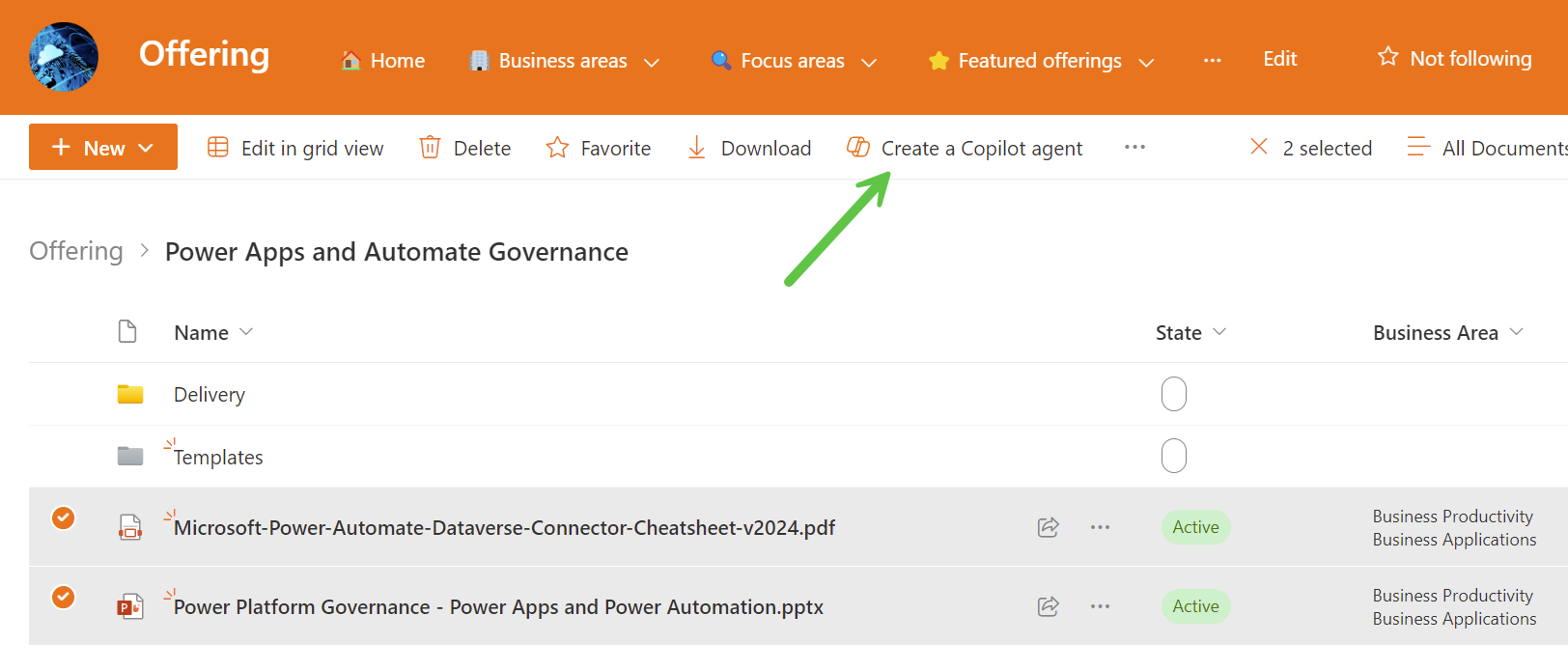
You need to select the desired documents and click the Create a Copilot agent in the ribbon. And with almost a click of a button, the agent is ready to be used.
Few Notes
I have only a few hours to spend with the agents; more testing and learning are needed. But there are a few things that I think are worth noticing already.
- The agents are created and accessed only from the SharePoint library you create.
- Users need a Microsoft 365 Copilot license to create and use these agents.
- These permissions for the agent and its data source come from the same SharePoint library where the agent is created.
- The actual agent is saved as a schema file inside the library.
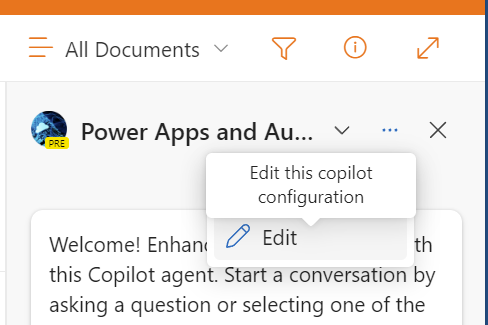
After creating the agent, you can add new files as knowledge from all libraries from any library in the site collection of the agent’s document library. This can be done from the agent editor of the agent.
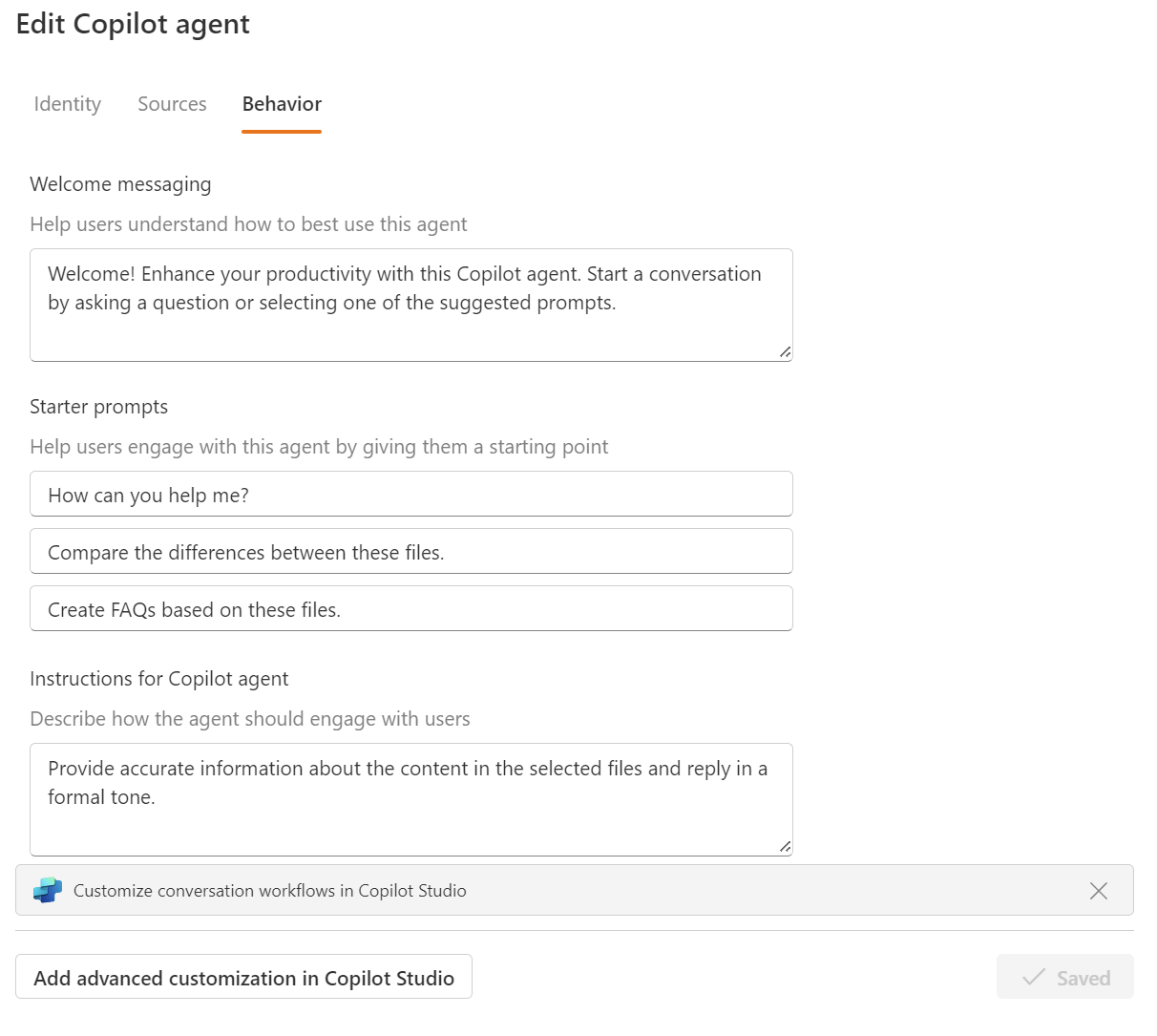
You can also fine-tune the agents’ behavior from the agent’s settings. For example, you can fine-tune the agent by giving the necessary instructions. In the future, you can turn the SharePoint agent into a full Copilot Studio agent.
An interesting feature is also the possibility of adding SharePoint sites as additional knowledge sources for the bot. With this, you can easily and quickly make even more powerful agents for a specific purpose.

In the example below, I added some technical documents and our consulting playbook site as a knowledge source. In a few minutes, I had a small agent to help our consultant find relevant information for them.
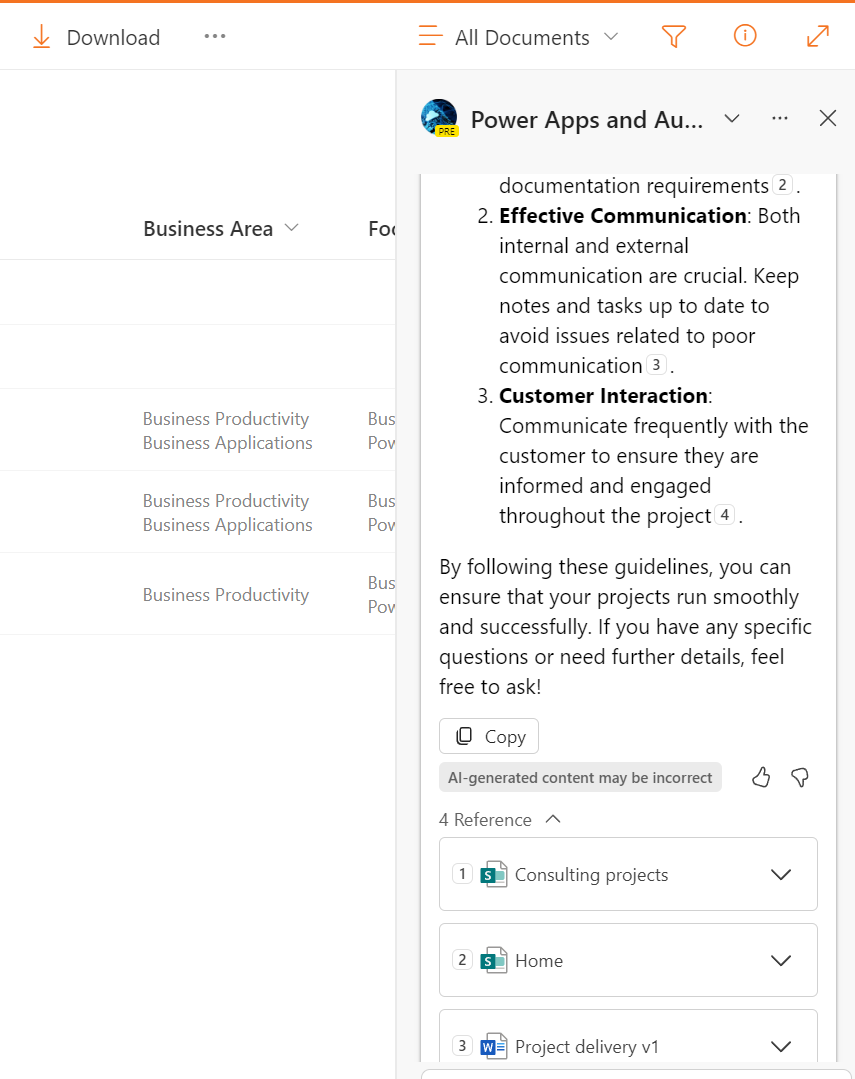
These lighter agent types will soon come into the Microsoft 365 Copilot Business Chat experience.







 Mikko Koskinen
Leave a comment