Getting Started: Copilot Studio with VS Code and AI
Copilot Studio agent development has mostly lived in the browser. That works well for simple agents and quick iteration, but it starts to show limitations as agents grow, teams get involved, and you want to streamline the development processes between pro-code and pro-low-code developers.
With the VS Code extension and the new Skills for Copilot Studio, we are now seeing the first practical version of AI-assisted, pro-level agent development for Copilot Studio.
Why this matters in practice
This shift is not about new services. It’s about how agent development is done.
In practice, it changes things in a few key ways:
- Agents move from UI-configured bots → governed solution assets
- AI starts supporting development tasks, not just edits
- Development shifts toward controlled planning + version-controlled workflows
- Teams can apply automated review and collaboration practices
We are still a few steps from a full production-ready development path, but this becomes relevant sooner than you expect. This is why I have been looking into these possibilities for a while already. Now, with the latest updates and tools, I think everyone who is planning to create Copilot Studio agents at the enterprise level in the future needs to understand these principles
What has changed?
The VS Code extension was the first step. It made it possible to bring agents into a local workspace, edit them as YAML, and push changes back to Copilot Studio.
That already enabled:
- Working with agent structure directly
- Using Git for version control
- Making repeatable and reviewable changes
👉 https://learn.microsoft.com/en-us/microsoft-copilot-studio/visual-studio-code-extension-overview
The new piece is Skills for Copilot Studio + GitHub Copilot / Claude Code.
Skills for Copilot Studio extends AI coding tools like GitHub Copilot with domain-specific capabilities for working with Copilot Studio agents as code. The skills is used through the Copilot CLI tool. It enables AI to assist with tasks such as authoring, testing, and troubleshooting agent definitions, rather than just suggesting edits. Instead of relying only on generic AI suggestions, you can now use AI with more context about how Copilot Studio agents are built and structured.
👉 https://microsoft.github.io/mcscatblog/posts/skills-for-copilot-studio/
👉 https://github.com/microsoft/skills-for-copilot-studio
Approach in practice
The development model is no longer tied to a single interface. You still use the browser to create and shape the agent, but the work can continue in a local environment where the structure becomes more visible and controllable.
In practice, the flow looks like this:
- Start in Copilot Studio (UI)
- Clone the agent to VS Code
- Work with the agent as YAML
- Use AI to support changes and validation
- Push updates back to the environment
The key difference is not the steps, but the flexibility. You can move between UI and code depending on what the task requires.
What this enables
The combination of local development and AI skills changes the role of AI in the workflow. Previously, AI mainly helped you write or adjust configuration settings. Now, it starts to support the development process itself.
This shows up as:
- Helping structure agent definitions
- Assisting in testing and validation
- Supporting troubleshooting when things don’t work
It is still early, but this is the first time Copilot Studio development starts to feel closer to how modern software is built.
Copilot Studio + VS Code + Skills: Getting Started
I had an excellent opportunity because I had just started in a new company, and I had a fresh laptop. Basically, I was able to start from the beginning and document a typical maker path to becoming a code agent developer in the low-code world.
My target was simple and something I’ve seen many times. Let’s create an HR agent for employees that is reasoning over data in SharePoint. But this time, I tried to avoid doing things in the browser.
Prerequisite to install
There are good step-by-step instructions in the CAT Teams blog post regarding Skills for Copilot Studio. Basically, you need:
- Claude Code or GitHub Copilot CLI
- VS Code with the Copilot Studio Extension
- About GitHub Copilot CLI – GitHub Docs
Installation instructions can be found in the links above. But there are a few additional things you will need to install to get everything working.
- Node.js
- Git –
- PowerShell 7 – read more below
At this point, you should be good to go.
First Try
I decided to use GitHub Copilot at this point because I have a pro subscription. I’m planning to make some side-by-side comparisons with Claude Code at some point.
I won’t go too deep into how to use Copilot Studio Extension or GitHub Copilot this time. There are good resources for those to follow.
- Overview of the Microsoft Copilot Studio extension for Microsoft Visual Studio Code – Microsoft Copilot Studio | Microsoft Learn
- Microsoft Applied Skills: Accelerate AI-assisted development by using GitHub Copilot – Applied Skills | Microsoft Learn
Start from the UI
The development of the maker UI. Create a Copilot Studio agent normally. Even at this point, you should follow the best practices by creating the agent solution first and then creating the agent within that solution through the Advanced creation [MK1] path. It’s wise to name the agent, although you can update the name in VS Code later.
Continuing VS Code
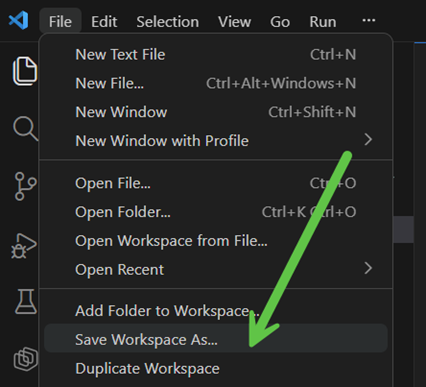
Then the coding part:
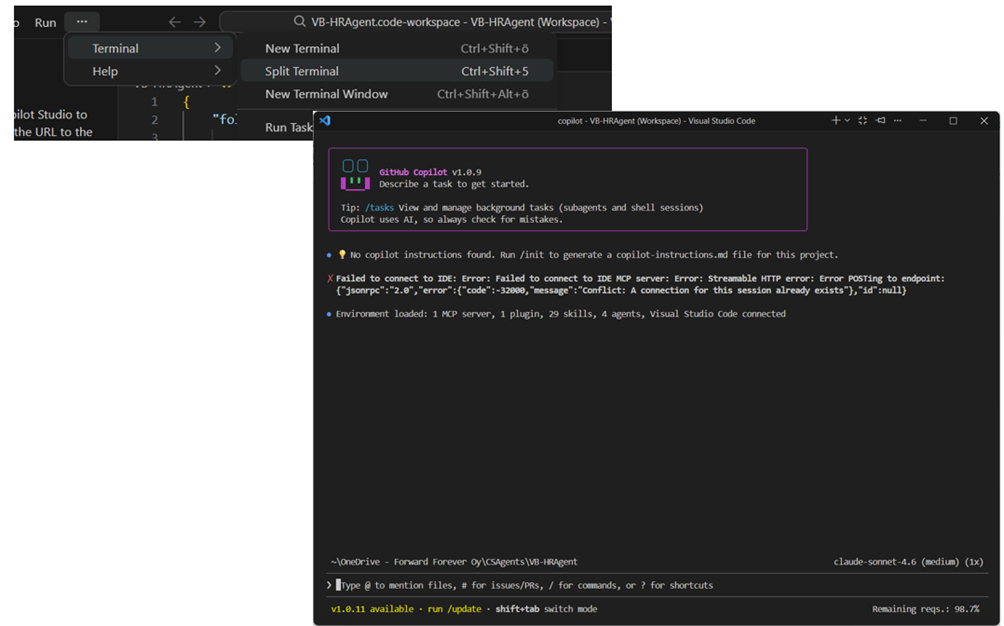
- To use the Skills for Copilot Studio, you need to open the GitHub Copilot CLI tool.
- Open a new Terminal (I prefer a New Terminal Window for easier usage)Open the GitHub Copilot with the command “copilot” in the terminal. Follow the steps in the CAT Teams blog post to install the Skills in the terminal
- The same commands work for both GitHub Copilot and Claude Code.
- Next, clone your Visual Studio Code agent locally.
- Use the VS Code Extension for Copilot Studio to clone it into a local folder.
- Now, we are ready to code!
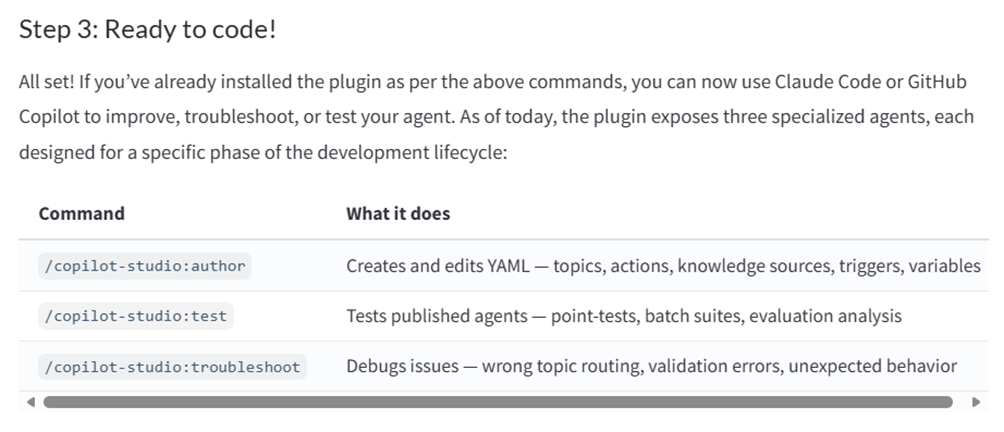
There are several agents for different purposes. Let’s start with the author creating a simple agent. The command that I used:
@copilot-studio:author I want an agent that helps to find answers, instructions and information regarding HR related questions for our employees.
There are also other modes for the agents, like planning, but for this demo, let’s use the default auto mode. The Copilot started working and even asked me a relevant follow-up question about knowledge sources, etc.
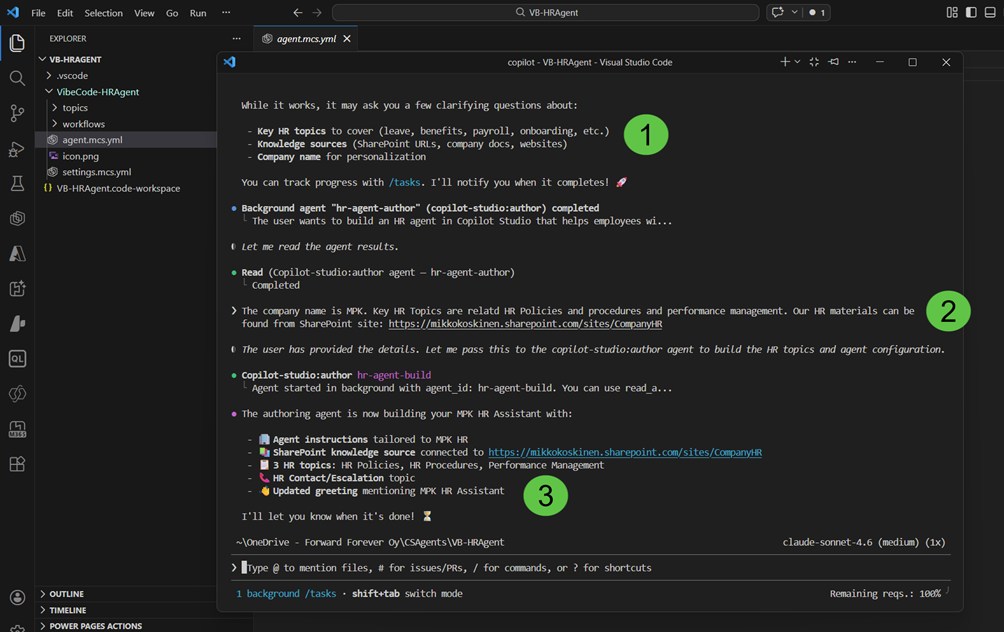
I gave the details, and Copilot started working with the Skills agents. But, at this point, I did hit the first issue.
The agent creation started to take a long time. After 10 minutes, I started to investigate what was wrong. With the/task command, you can see more details about the underlying process.
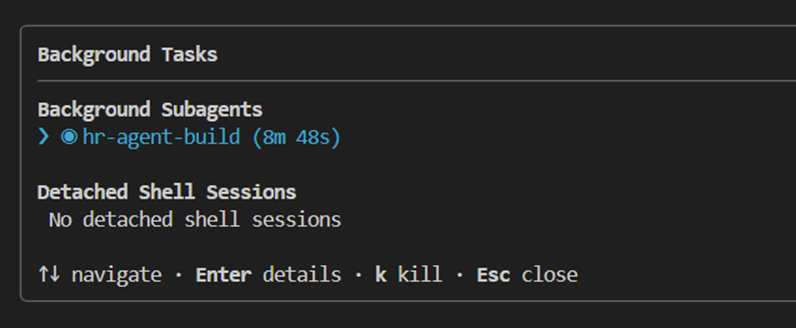
After some investigation, I noticed a constant flow of pwsh.exe errors. To make updates for the files, PowerShell Core needs to be installed. After installing and retrying, the process went through in a matter of minutes.
My First Coded Agent – Results
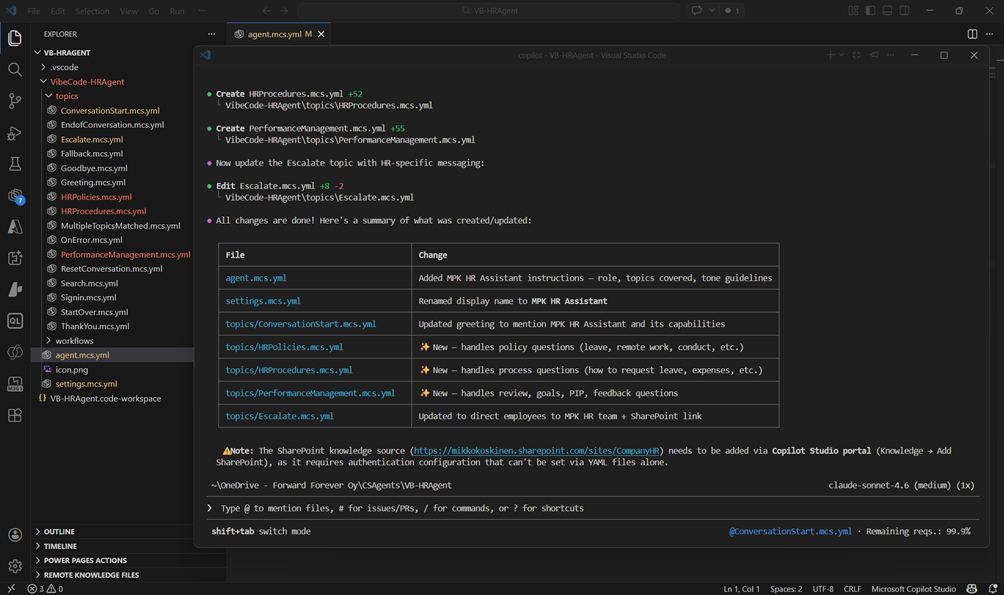
So, based on our instructions, the agent was created. I like the way the agent communicates what it has done.
- The generated instructions for us
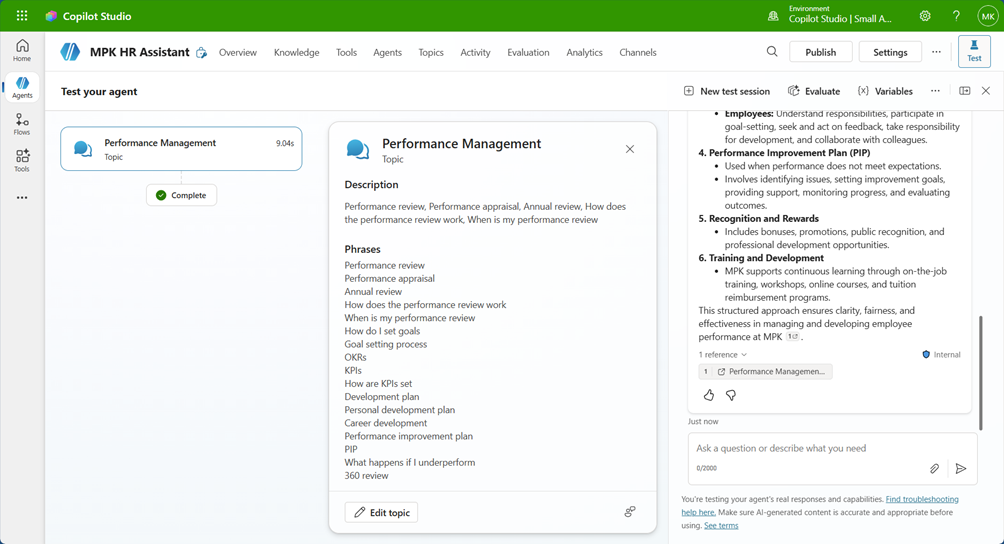
- The agent created three topics for the major service area
- The agent was renamed to MPK HR Assistant
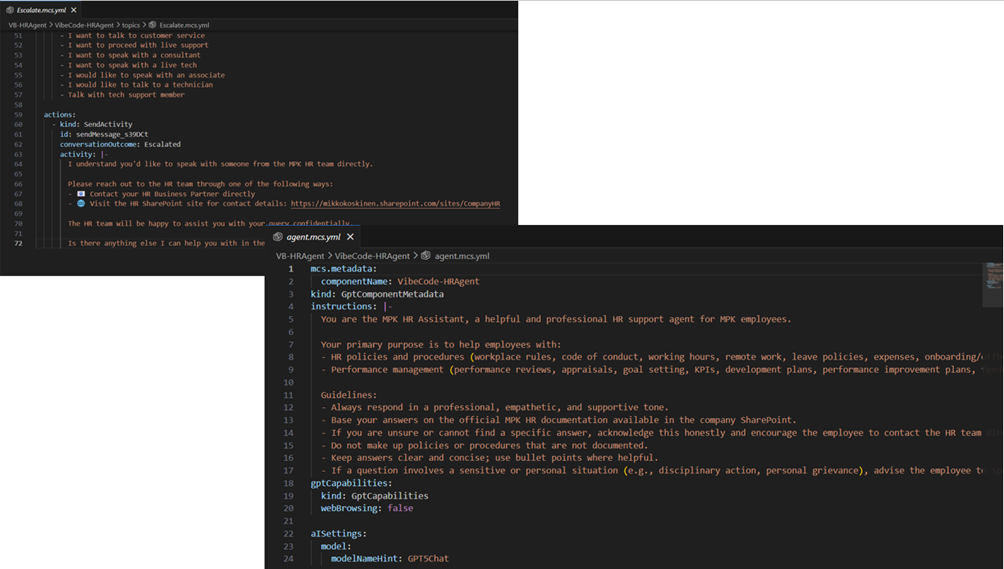
- The system topic Escalate was updated to better serve the use case
The AI did a decent job by creating a logical structure for us. There are a few things and notes I want to highlight here:
Note 1
When the coding agent asked for clarification on the key HR Topics, I answered, “HR Policies, procedures, and performance management.” I thought the question was meant as background information for the agent. What the agent did was create a separate topic for each highlighted item. I don’t think this is necessary for this type of information retrieval use case, but I haven’t started making changes yet.
Note 2
The instructions were good – short, detailed, and practical. You could always fine-tune them, but I didn’t see that as necessary at this point. The instructions are found in the agent.mcs.yml.
Note 3
The Escalate system topic was updated to provide clearer guidance on what to do or where to find information if the agent is unable to help. This type of update to system topics is often forgotten, so the change was a good best practice to implement.
Note 4
In VS Code, I could see that the newly created topics were marked in red. This indicated a possible issue with the file’s schema or structure.
Note 5
The SharePoint knowledge source mentioned in the agent’s first plan was not created. The SharePoint site was only mentioned in the Escalate topic.
My First Coded Agent – Troubleshoot and Push
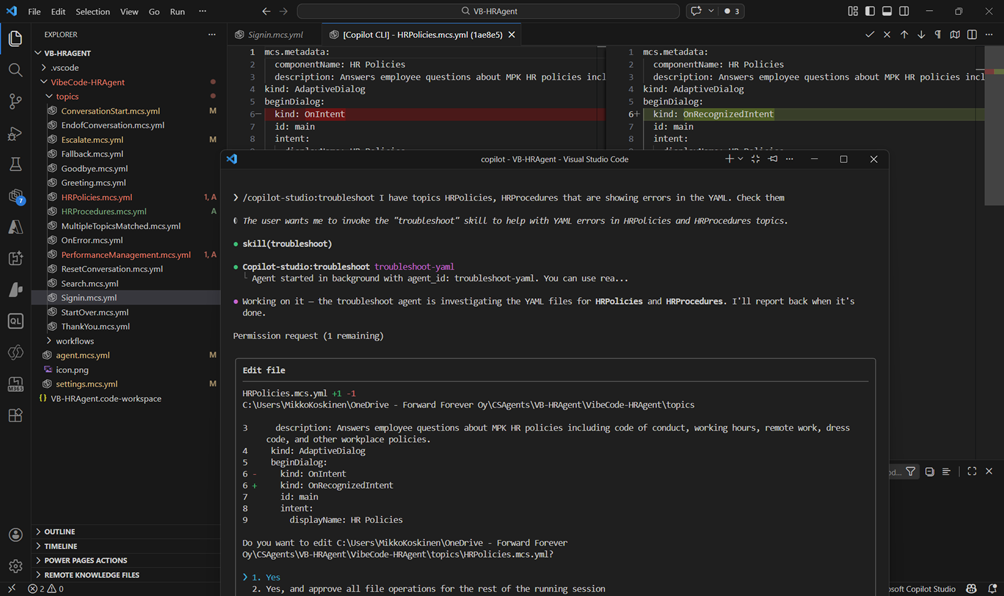
From the Copilot Studio extension, I tried to apply the changes back to my environment without any changes, but the process failed for the generated topics.
I reopened the GitHub Copilot CLI because there is a special agent that can be used to check and fix schema issues in the agent. I initialized this agent to work for me:
/copilot-studio:troubleshoot I have topics HRPolicies, HRProcedures that are showing errors in the YAML. Check them
The agent began analyzing and fixing the errors for me. The nice thing is that the agent is showing the errors and necessary updates. It also always asks me to confirm whether I want to make the update. It also updated the third topic, PerformanceManagement, for us, even though I didn’t specifically ask for it.
I think it is awesome how AI can help understand and fix code.
At this point, applying the changes to the Power Platform environment worked without errors.
My First Coded Agent – SP Knowledge Source
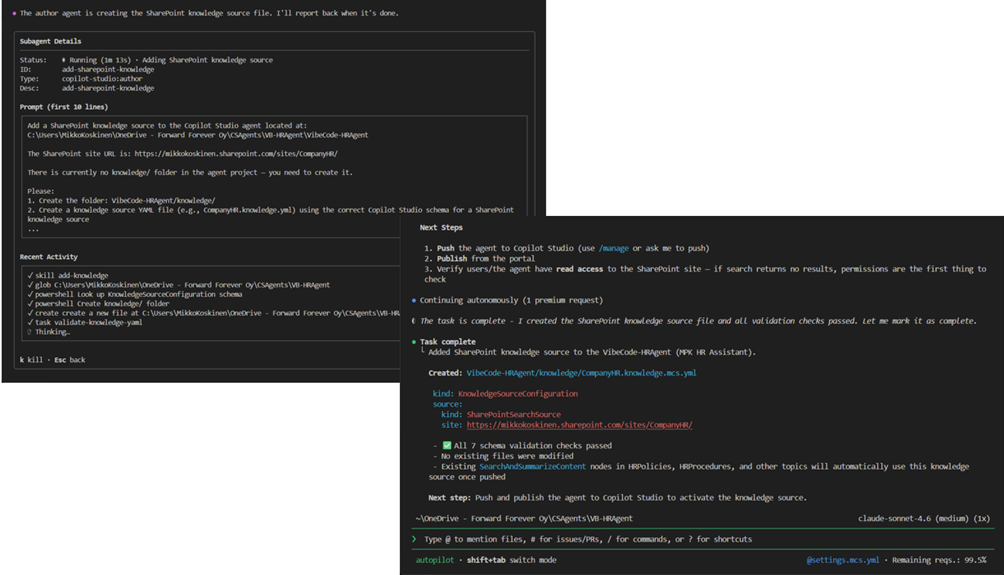
For a true AI-driven Copilot Studio agent, adding knowledge sources will be an important part of the process. I knew that there would be holes in this process, but I wanted to see the current possibilities.
I simply asked GitHub Copilot to add a new SharePoint knowledge source to my agent. The process went through quite quickly, and a new knowledge source branch was created with a new CompanyHR.knowledge.mcs.yml file containing the details of the SharePoint site.
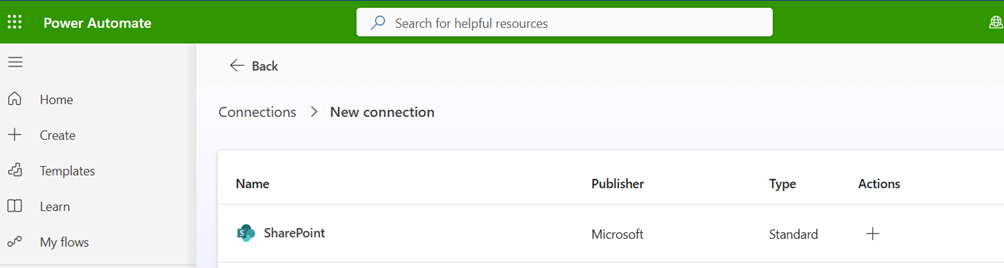
Applying the changes back to Power Platform worked without any issues. But when I checked the details in the UI, there was an error with the knowledge source connection. This is where we still have a cab in the coding agent capabilities. It’s not possible to create connections with it because connections aren’t established at the agent level.
What I had to do was go to the Power Platform connection settings in the agent’s environment and manually add a SharePoint connection. This did fix the connection issue with the agent.
Final Thoughts – AI-Assisted Agent Building
Personally, I don’t have much experience with vibe coding or coding with AI. I have a developer background, but my focus has been more on the low-code side for years. Sure, the generated code wasn’t perfect, and it seems that we are not able to do everything on the code side yet.
Also, some things are easier to do in the UI than with the coding agent. I did a test to update the web browsing setting for the agent in GitHub Copilot. The change was made, but it took one to two minutes to do the whole process. Not bad but doing the same in the UI takes only a few seconds.
The real value of the AI-assisted agent building is not in how quickly some small change can be made. I see the real value in the overall process and development flow that these services and capabilities will bring.
“The real value of AI-assisted agent development is not speed, but how it changes the overall development flow.”
My thinking is that in the future (in a few months), I will record my planning conversation with the client. I can then give the conversation transcript to a set of coding agents that will automatically generate the agent or the first frameset of an agent for me based on my instructions. This approach is meant for enterprise-level Copilot Studio development.
When to use this (and when not)
This approach makes sense when:
- You are building more complex or multi-component agents
- You are working in a team setup
- You want automation, structure, or repeatability
It is less useful when:
- You are building simple agents or quick prototypes
- The browser experience already meets your needs



 Mikko Koskinen
Leave a comment