SharePoint and an agent are perhaps the most used combination and something that many of you are building when creating your first Copilot agents. One constant request we hear is to publish the Copilot Agent to a SharePoint site. Earlier, this has only been possible by embedding the agent to a web part of the site.

Microsoft has promised easier integration between Copilot Studio and SharePoint sites, and the new channel is now available. After the agent is published, you can make your agent available to your SharePoint users through a new SharePoint channel.
Here are a few key points to note as an agent maker, particularly as an administrator who should be familiar with this new feature.
Official documentation: Publish an agent to SharePoint – Microsoft Copilot Studio | Microsoft Learn
Published Agent Type

For me, the first surprise was that publishing an agent to the SharePoint channel means that the agent will become available through the SharePoint Agent experience. This means that we now have a way to create a fully powered custom engine agent as SharePoint Agents.
This means that we now have a way to create a fully powered custom engine agent as SharePoint Agents.
Sure, it makes sense, but I was hoping that the new channel would help make the process of embedding and having a single sign-on configured more easy. However, this is not the case, and we still need to use the embed method and SPFx components. Here are a few details about that:
- Basic embed: Embedding Copilot Studio Agent in a SharePoint Page | Blog about anything related to my learnings
- SSO SharePoint SPFx: CopilotStudioSamples/SSOSamples/SharePointSSOComponent at main · Microsoft/CopilotStudioSamples · GitHub
Multi-Channel Publishing
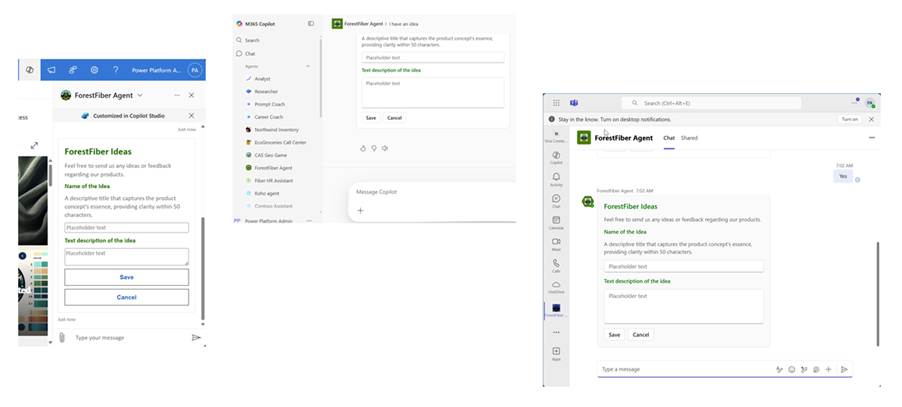
Then again, I do understand that Microsoft is trying to build a complete ecosystem where agents are used in a controlled manner through recommended channels. You can see this from the fact that the SharePoint channel is using the OOTB Microsoft authentication.
This enables us to offer multi-channel publishing capabilities. Due to Microsoft authentication, the agent can be used in Teams, Microsoft 365 Copilot, and SharePoint sites, allowing for a single agent to support multiple different usage scenarios and capabilities. I think this is a valuable feature to use.
Publishing Process Details
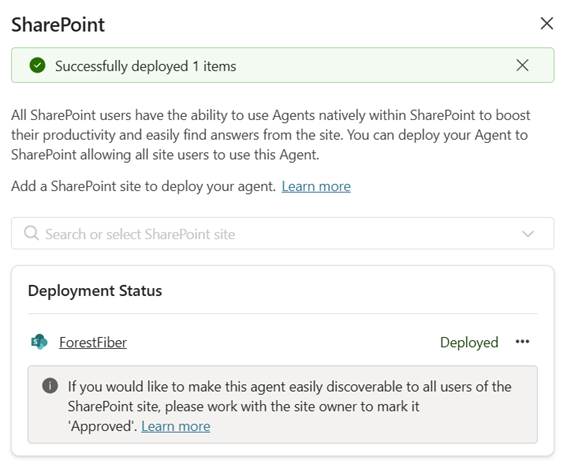
The publishing process to SharePoint is quite straightforward. From the channel publishing settings, you need to select the SharePoint site and click Deploy. Note! To perform this procedure, you must have WRITE access to the SharePoint site. There are more basic details, such as test and undeploy, in the official documentation (link at the beginning).
But what happens at this point?
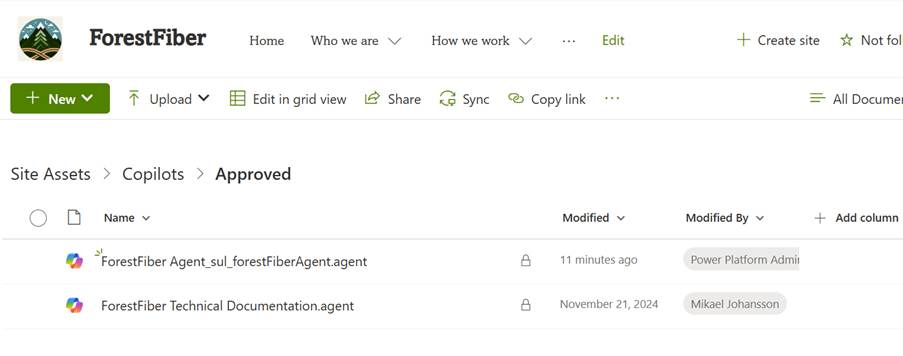
Publishing creates a .agent file into the site’s Shared Document library. You can open the agent from there, and after a while, it will also be added to the Copilot menu in the top right corner.
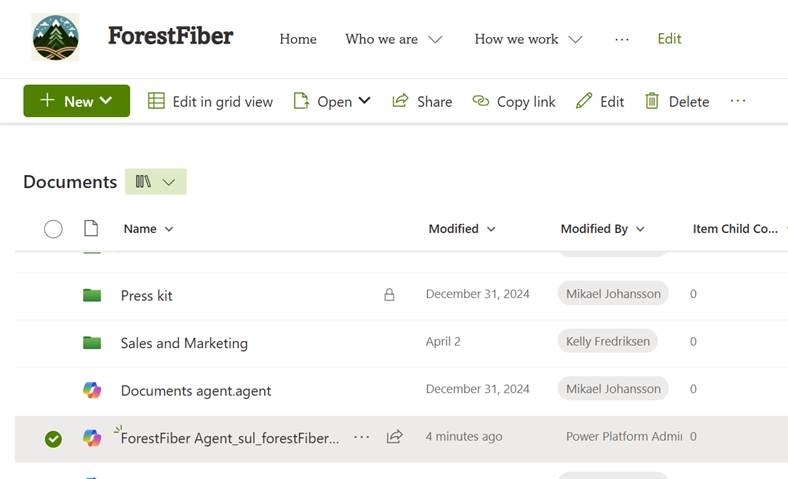
In default mode, you can recognize the SharePoint Channel agent by its name, which includes the name of the agent and its schema name. End-users will find the agent with its name.
However, this agent is not the same type as the standard SharePoint agents. The file is only a reference to the actual agent in the Power Platform environment. Below, you can see the difference from the opened .agent files.
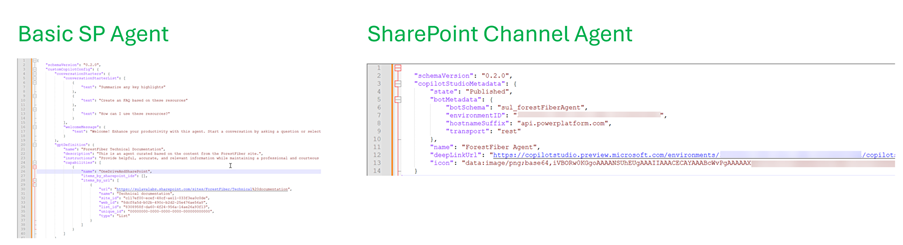
This means that you have full control over the agent and its capabilities through normal governance and administrative tools in Power Platform. Critical feature!
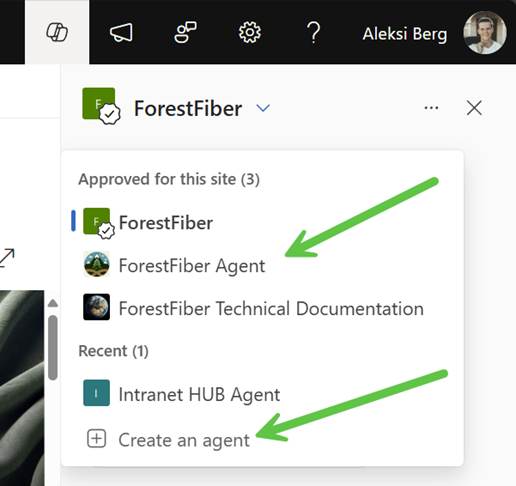
Especially for the more advanced agents that are centrally managed, it’s a good idea to set the agent to be easily found by every user on the site. This can be done by approving the agent. An Approved agent appears in a dedicated Approved section when using SharePoint.
But note that when the agent is approved, its .agent files are moved under the Site Assets library, where all the basic site-level agents can be found. If you want, this custom engine agent can also be set as the default SharePoint Agent for the site.
Usage and License
Then comes the challenging part, where administrators need to understand the side effects.
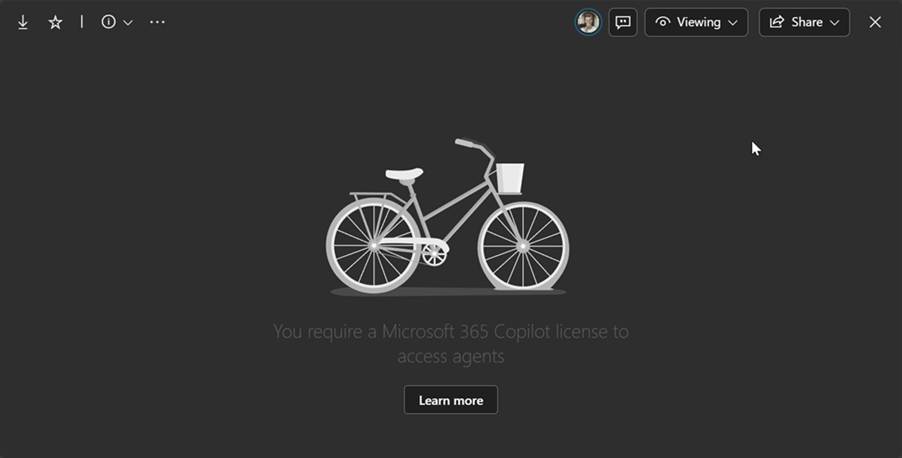
- In default mode, agents published through the SharePoint channel are visible only to those who have a Microsoft 365 Copilot license.
- Non-licensed users can view the .agent files, but someone may attempt to send them the agent link; however, they will not be able to access the agent.
- To enable the agent for non-licensed users, you must enable SharePoint Agents in general and set up billing for them.
For non-licensed users, this meant setting up the SharePoint Pay As You Go (PayG) from the Microsoft Admin Center (MAC) for the user’s tenant and ensuring that billing capability (prepaid messages or PayG) is set up for the agent’s environment in the Power Platform Admin Center (PPAC). The agent adheres to Copilot Studio billing policies and utilizes Copilot Studio capacity, even when used in SharePoint.
Important Note
When the PAYG for SharePoint Agents is activated, non-licensed users can also access the agent. You need to remember that this activation is not targeted only at the SharePoint Channel agents. Also, the default SP Agent is activated, and every site member will have permission to create new agents.
You need to remember that this activation is not targeted only at the SharePoint Channel agents.
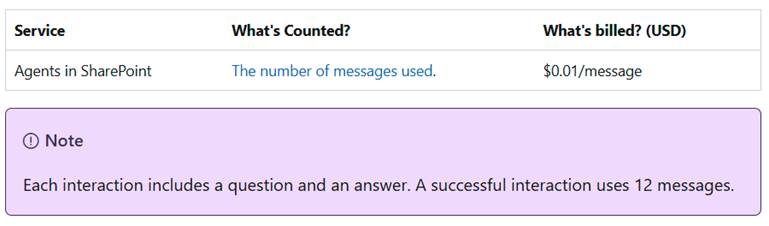
Remember to carefully investigate the potential cost-effectiveness of SP Agents that you may face when considering activation. Set up SharePoint agents for pay-as-you-go billing – SharePoint in Microsoft 365 | Microsoft Learn
DLP – Settings and Monitoring
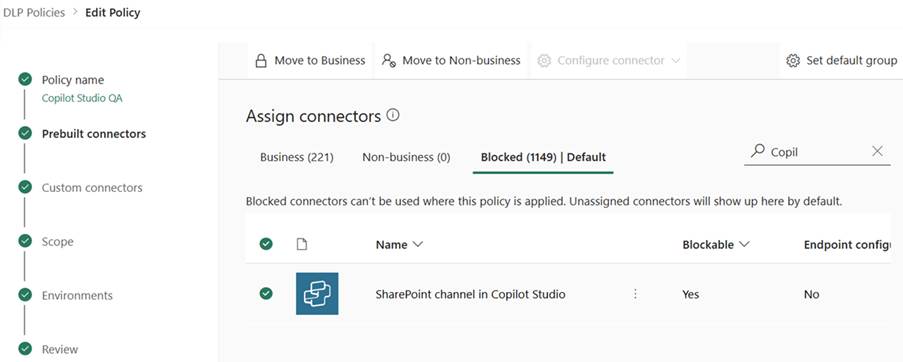
If you want to prevent users from publishing custom engine agents, a DLP setting is available for this purpose. The setting is new, so remember.
You can block or set the connector in the DLP policy level as desired. The setting is new, so remember to check the current group for the SharePoint channel in the Copilot Studio connector. I had it in the blocked phase before making the update.
Monitoring – Published Agent
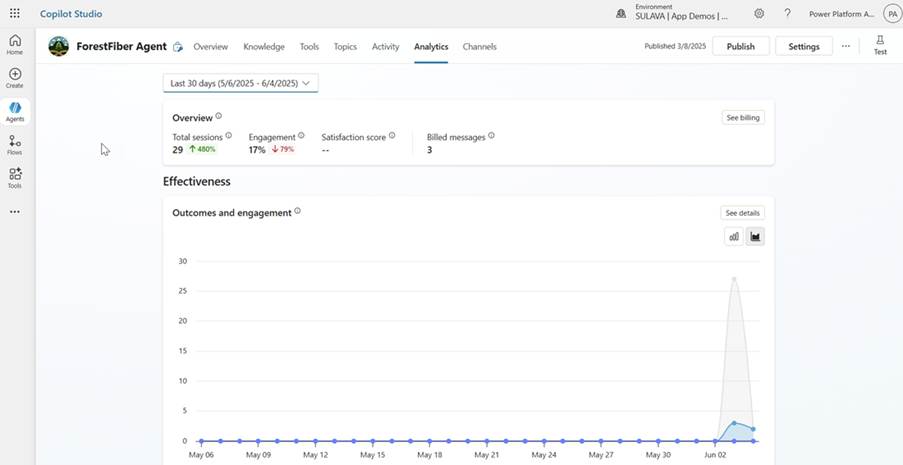
The advantage of these custom agents, published through the SharePoint Channel, is that they offer a lot more tools and capabilities to monitor the agents’ behavior and usage than normal SP Agents. You can use the same agent-level and Power Platform Admin Center tools as with other Copilot Studio Agents.
One thing to decide is how you want to control the costs of the agent’s usage. This can be done with the tenant message pack or with a separate Azure PAYG billing policy. Personally, I prefer to use the PAYG method for more targeted monitoring and easier cost-sharing capabilities.
Copilot Studio licensing – Microsoft Copilot Studio | Microsoft Learn
Monitoring – PAYG
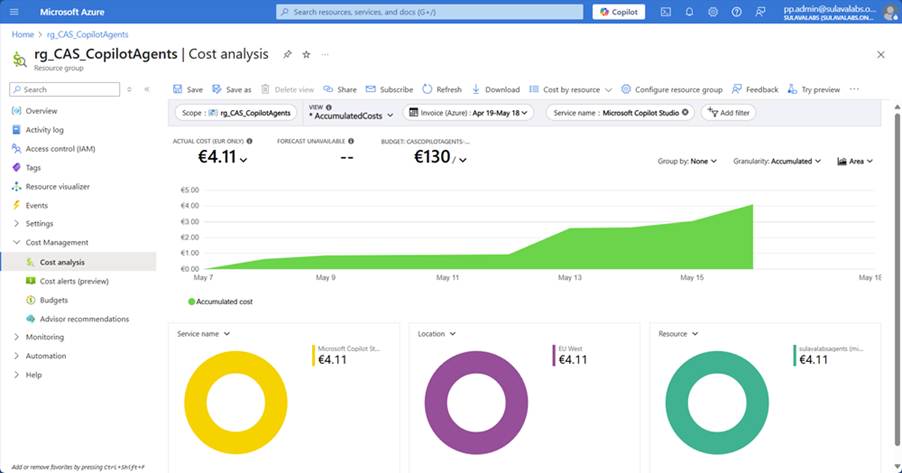
For other agents that you might enable during this process, you can monitor your organization’s consumption of SharePoint agents using pay-as-you-go billing with Microsoft Cost Management in Azure.
You can see the cost details through the resource group that you connected to the PAYG billing policy. I recommend adding a budget and alerts to mitigate potential large usage situations.
Currently, there is no straightforward method for allocating costs among different organizational departments or functions. This is something I hear from my customers, and I hope the tools will evolve to support this better in the future.
Set up SharePoint agents for pay-as-you-go billing – SharePoint in Microsoft 365 | Microsoft Learn
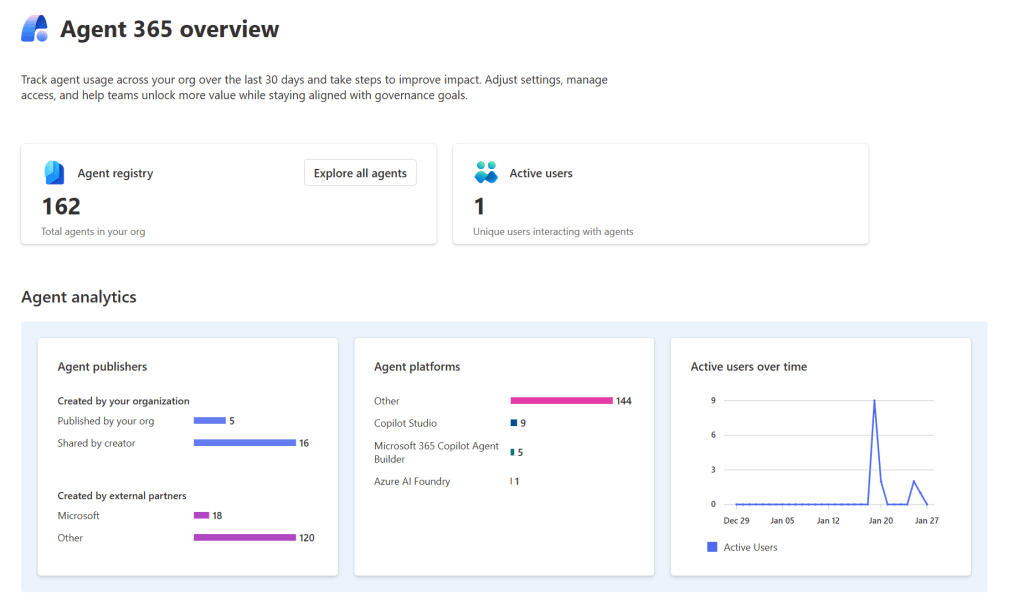
In my previous post, I showed away how to list and find more information about SharePoint agents. You can check more details from there: Find and List SharePoint Agents – Mikko Koskinen
Thought About DLP Governance
I’m still depending on which group to set this in the Default environment. In a way, this is a standard type of connection, and there is no direct harm in having this available. Enabling this in the Default environment will allow users to create a simple custom SP Agent that only licensed users can use if PAYG is not set up. The usage is included in the license, and the agent will still adhere to all other DLP settings, which should be quite strict in the first place.
How are you planning to set up the DLP settings for this in the Default environment?



 Mikko Koskinen
Leave a comment