When it comes to AI Agent development in the Microsoft ecosystem, Copilot Studio is probably the most common tool that your users will start to investigate. That raises questions among administrators about the best way to enable a secure and practical development process for users.
In general, your Power Platform governance process and practicalities give a solid base for Copilot Studio and agent development, but there are a few things to notice. Honestly, it is not uncommon that there is no solid governance plan or that it’s been in the WIP stage for a while.
- General Notes and License
- Select Your Environment Strategy
- Regarding the DLP Settings
- Recommended Environment Settings
- Deployment Pipeline Setup
You need to remember that there. There is no single correct way to do things regarding Application Life Cycle management and development practices in Power Platform. But here is the one we use as a starting point and in our internal development.
- Create Power Platform environments DEV – (QA) – PROD based on the selected strategy.
- Promote them as managed and prepare the tenant settings.
- Set the environment settings and create a developer team with the needed security roles.
- Prepare the Publishing Pipelines.
General Notes and License
To ensure smooth development, planning and communicating a suitable Application Lifecycle Management (ALM) process for your organization is crucial. Copilot Studio Agents Builder agents like SharePoint and Microsoft 365 Copilot Chat are ideal for personal and small team usage. However, creating Copilot Agents with Copilot Studio or as a Teams Toolkit agent is recommended for a larger user base.
Let’s concentrate on Copilot Studio and Power Platform at this point. One important thing to note regarding the Copilot Studio or Microsoft 365 Copilot license is that it includes the right to use premium capabilities and a managed environment.

This is definitely something that you should leverage in the governance process.
Select Your Environment Strategy
When it comes to needed environments, I recommend creating dedicated environments for Copilot Studio development based on your environment strategy rules. Here are a few things to consider:
- The default environment is not a place for Copilot Studio development.
- Developer environments are a better option, but note two things:
- Managed environment use rights aren’t included in the developer plan, so enabling the recommended managed features will make the app creation a premium feature.
- After 30 days of inactivity, an environment is turned off, which is not long, especially in typical internal maker use cases.
- This is why I recommend using the actual Sandbox and Production type of environment.
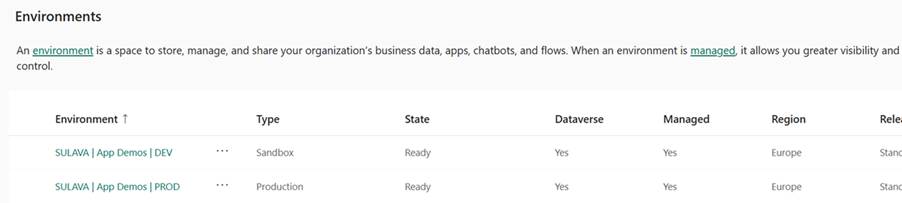
It’s always a debate about how many environments you should have. It all comes down to the need and the level of expertise that you makers have. I recommend creating at least two Power Platform environments, DEV (Sandbox) and PROD (Production). QA/Test might be necessary for larger implementations.
What I have found hard to accomplish currently is separating the agents based on the environment.
The agent can be tested without publishing it from the maker’s experience. Unfortunately, currently, there is no information or mechanism to point out through name or details from which environment the agents are coming to the user. So, if you publish and share the agent from QA with your testers, they may see two agents with the same name available for them when the agent is published to production. I hope we will see some possibilities for changing this feature in the future.
Regarding the DLP Settings
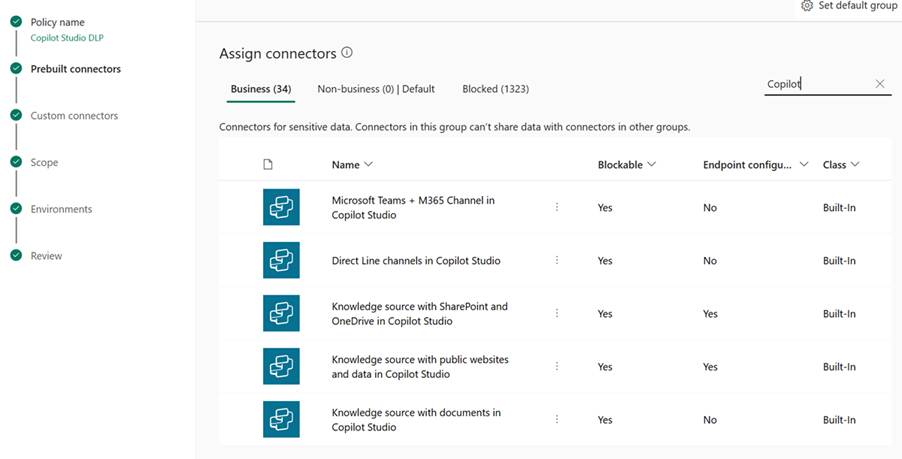
Going through everything there is to know regarding the DLP would need a separate blog series, but I think there are a few things worth going through. There are a few principles for the DLP settins that I would like to follow.
- The default environment should have a separate DLP with more strict settings than other environments.
- Use the DLP settings to block unwanted Copilot Studio and other connections from the default environment.
- Create Copilot Studio DLP to be used with your default agent building and production environments.
- I recommend blocking at least the “Chat without Microsoft Entra ID authentication in Copilot Studio” and “Facebook channel in Copilot Studio.”
- These are pretty special connections; you should always know when they are used. A separate environment for the agents using those channels is a better option.
Remember to finalize the process regarding the DLP settings when you enable them.
- Plan upfront how you want your makers to contact you so that you can give permissions and guide them to the correct environment.
- Create a place, document, or SharePoint page for you makers with instructions on what to do when the policy is blocking their features.
- Use the New-PowerAppDlpErrorSettings PowerShell command to update the default governance error message content and give a link to your instructions for the makers.
- After this, remember to communicate with your IT admin group and instruct them regarding the Copilot Studio procedures.
More details of DLP settings: Manage data policies – Power Platform | Microsoft Learn
Recommended Environment Settings
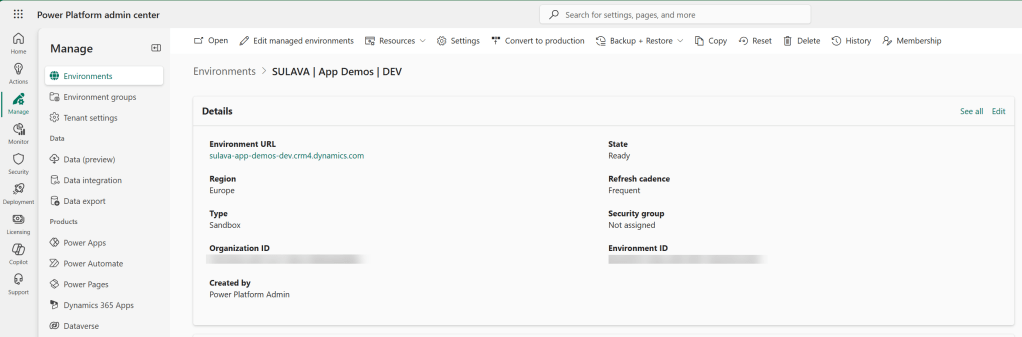
As mentioned above, promote the Copilot Studio environments as managed. This will give you extra administrative tools and enable the usage of the pipelines for the makers.
- Set the DLP settings through a joint policy for each environment in the same publishing pipeline
- Check the general settings for each environment (AI usage, components, etc.) based on your needs and governance rules
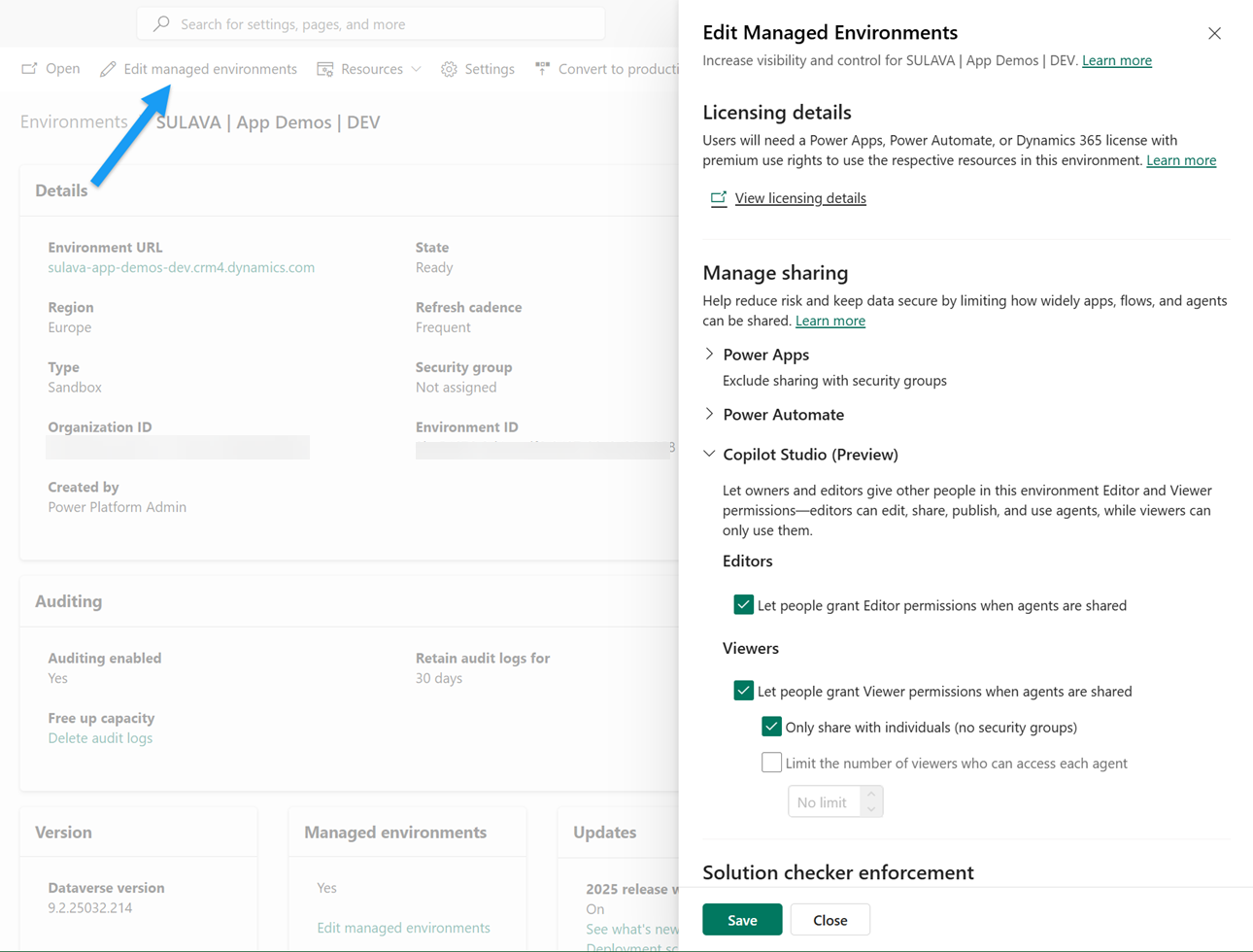
- Update the Edit managed environment settings
- For development environments:
- You can let people grant Editor permissionsLimit the sharing to only individuals
- Set the solution checker enforcement at the Warn level
- For production environment:
- Prevent editor permissions
- Set the solution checker enforcement at the Block level
- I always create a Dataverse Team called Application Developers in the environment.
- This way, I can easily add new developers to the environment and set their security roles.
- I recommend using the Microsoft Entra group team type and managing the members through Entra ID rather than directly from the Power Platform side.
- Remember to set this group and permissions up to all environments in your Copilot Studio deployment process.
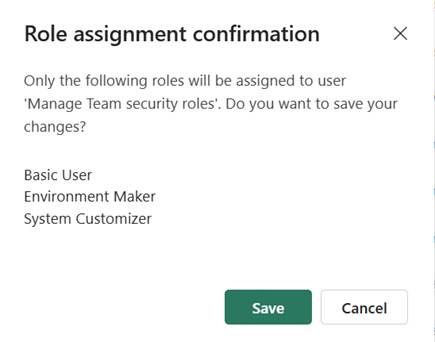
- Next, you should set the Security Roles for the created team
- This way, all the team members will get sufficient permissions to access the environment
- The minimum roles for the developers are Basic User and Environment Maker
- If you want to use the Component Collections, they will also need the System Customizer role
- Teams in Dataverse – Power Platform | Microsoft Learn
More general information: https://learn.microsoft.com/en-us/microsoft-copilot-studio/environments-first-run-experience
At this point, your agent developers already have the basic environments ready to start working.
Deployment Pipeline Setup
Because we want our developers to follow at least the minimum level of Application Life Cycle (ALM), best practices you need to make sure they know how to maintain their agents inside solutions. There is a good guide in Microsoft Learn for this: Export and import agents using solutions – Microsoft Copilot Studio | Microsoft Learn
Users can always use a manual process to move the solutions from the development environment to the next one, but I recommend training them to use Deployment Pipelines.
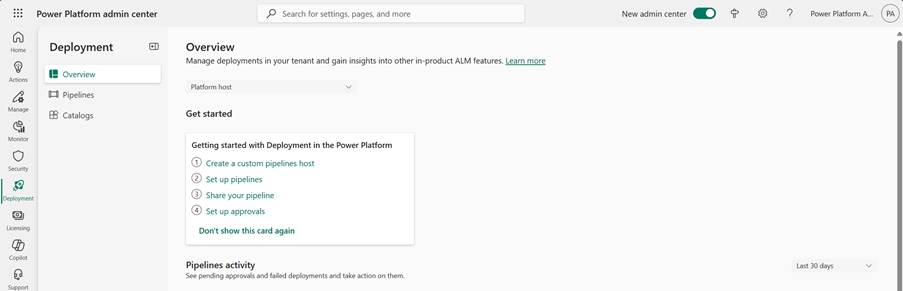
In case the Deployment Pipelines are not configured in your tenant, you can follow the steps in the Microsoft documentation to make the initial configurations: Configure pipelines using a custom host – Power Platform | Microsoft Learn. You will set up a special environment holding the pipeline configurations during this process.
You can always use the Deployment Pipeline Configuration application installed in the previous step to create the pipelines, but nowadays, it’s even easier to do from the development environment level. You need to set up this once, and after that, the same pipeline can be used for every agent deployment between the environments you have set up for Copilot Studio development.
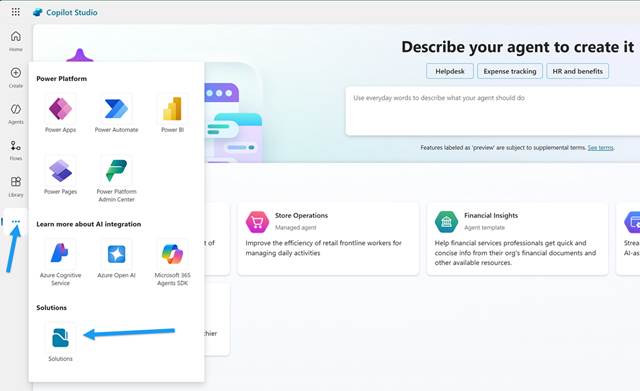
- Open the solutions from your Copilot Studio development environment.
- Open an existing solution like the Common Data Services Default Solution.
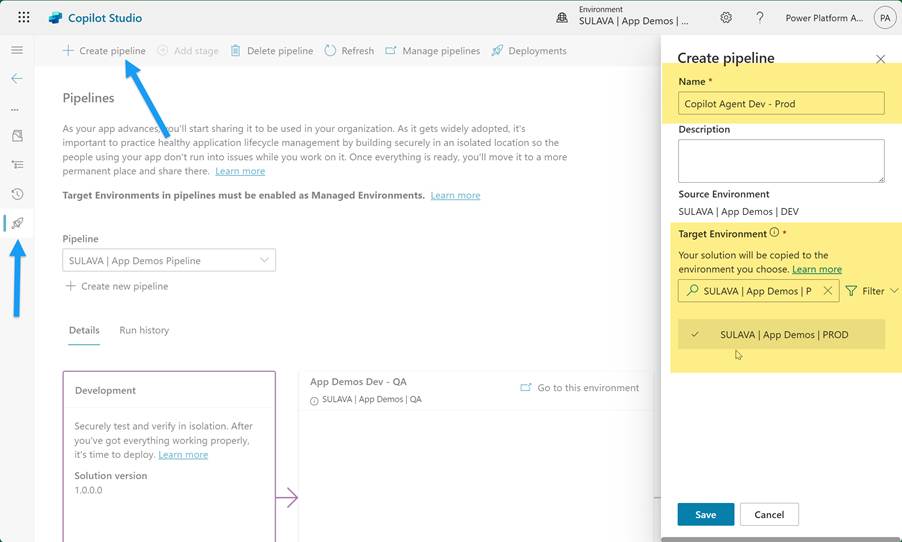
- Open the Pipelines settings page inside the solution and click Create Pipeline from the window menu.
- You should give a descriptive name for the pipeline. I like using a format that directly tells the pipeline process, like Copilot Agent Dev – Prod, to the users.
- If you have multiple environments, remember to first set up the pipeline from development to the next environment in the process, like QA.
- After this, you can create a new stage for the next one, like from QA to Prod.
- As a final setting, remember to give the agent developers the Deployment Pipeline User security role to run the pipelines.
- This is done within the host environment by assigning security roles to the users.
- Again, I recommend using the same team approach for this as you did for the development environment.



 Mikko Koskinen
Leave a comment