
Although Copilot Studio is used to create applications that use technological intelligence and new technologies, the principles of traditional application development should not be forgotten. Of course, artificial intelligence helps in many ways, but we creators also have a duty to ensure we serve the purpose and the end user.
In developing agents, one important thing to consider is to ask, what if constantly?
A good example is error management and communication with the end user. During one development, we noticed that the popular combination of Copilot Studio + Power Automate actions requires consideration. Fortunately, Copilot Studio offers good chat management tools.
So, let’s look at an example of how to manage error situations in action calls.
Setting Up the Test
First, let’s set the starting point for our simple example. We have a Copilot Studio agent with classic topics, and we call Power Automate action inside a topic. This is quite a typical situation. I simply created a topic that can be triggered with Phares Test A, etc.
In Power Automate, I used a small trick to generate an error in a controlled way. I initialized a Boolean variable with a text, which will lead to an error. We will fine-tune the flow in the following steps to be closer to best practices.
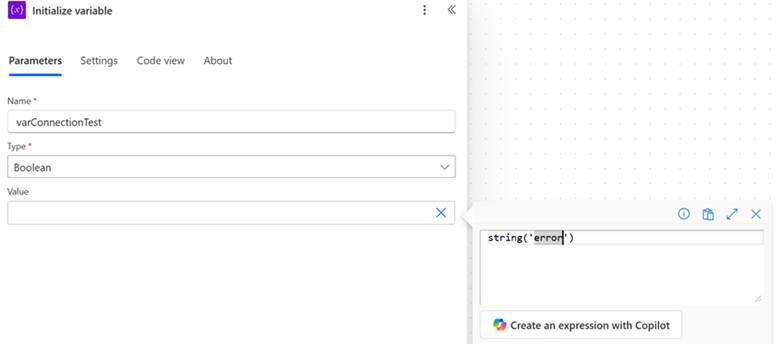
Although I’m using Power Automate here, the same principles and considerations apply to other action types, like custom connector calls.
Default Behavior
What happens if the action call fails? In many cases, the end-user sees a not-so-pretty error message.

So, from where this error message is actually coming from? If you track the process between the topics, you will see that the error message comes from a system topic called On Error.
Fine-Tuning the Error Handling
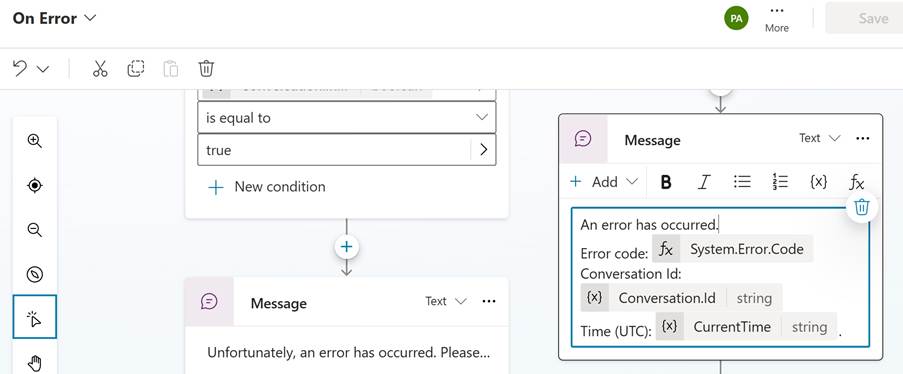
The first thing I’m recommending is to modify the message action in the system topic to be more user-friendly. Certainly, there is relevant information in the default message, but we should collect that information for IT differently. I think a plain language text is better for the end-users.
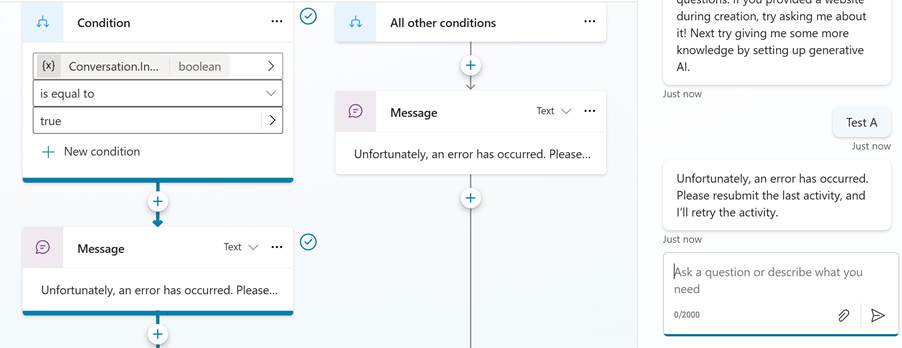
A wish for Microsoft – I would like to see a way to call the last topic inside the conversation flow. One possible flow here would be asking the end-user whether they want to retry to run the same topic from where they came to the On Error process. I didn’t come up with a flexible way to do this, at least.
Error Handling
What if the Power Automate or API creator knows what to do and follows the best practices by building an error-handling procedure for the action? I highly recommend this to be done in every Power Automate flow. So, let’s update our flow to include an error handling.
Add a new scope to the flow and modify the Settings by selecting the Run after behavior so that the scope is used only in the case that something goes wrong. Depending on the use case, you can take any action needed to mitigate the error.
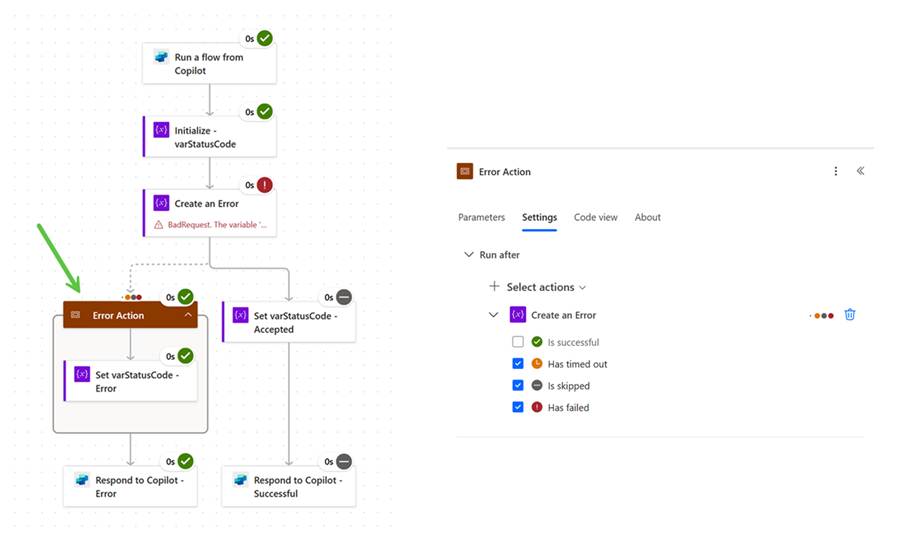
But there is an important thing to consider at this point. It turns out that the end-user doesn’t necessarily see an error occurring in the background when the action is called. This is because we now emit the error in the background API level. The topic flow on the agent side will continue normally, which might not be the desired behavior.
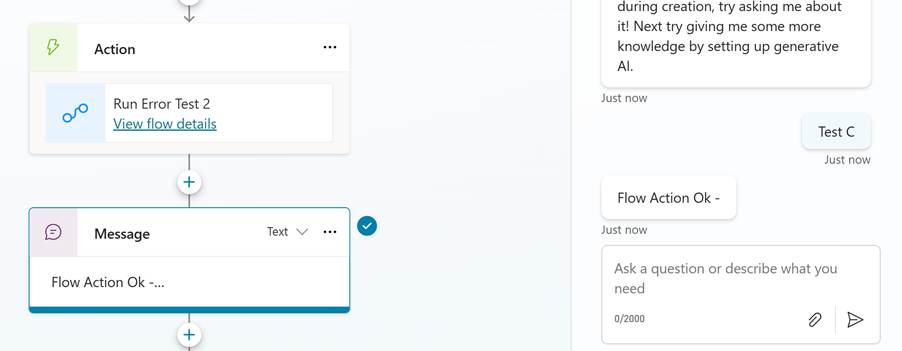
This is where you, as a maker, need to rethink the procedure and discuss with the action creator if you are using functions other parties are maintaining. You need to agree to a messaging flow and mitigate the situation on the agent side.
Error Communication
Let’s update our flow by adding a number variable to it. We can then use this variable to communicate the outcome of the process to the agent. As an old dog, I use HTTP status codes as a communication format, but this can be agreed upon freely.
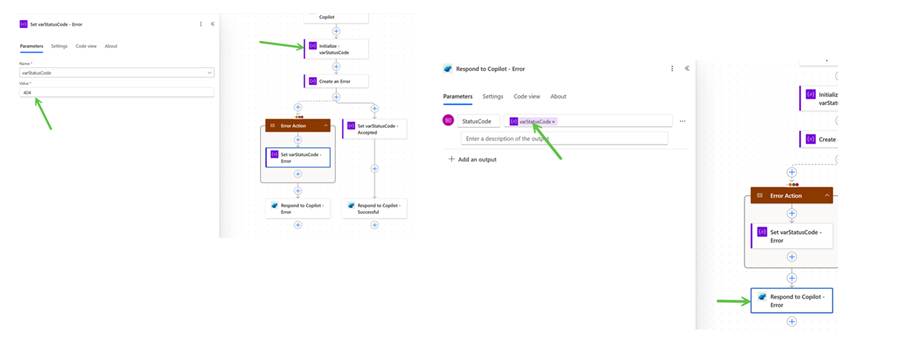
- Initialize a number variable – varStatusCode
- I update the variable to hold, for example, a 404 (error) number inside the error handling scope.
- Update the successful branch to indicate a successful operation by adding a 200 (OK) or similar code.
- Return the status code in the Copilot response as a parameter like StatuCode.
After this, you need to update the conversation flow in the agent to understand the error coding. Let’s update the action to get the output parameter in the flow. You might need to delete the old action and re-add the flow to get things working.
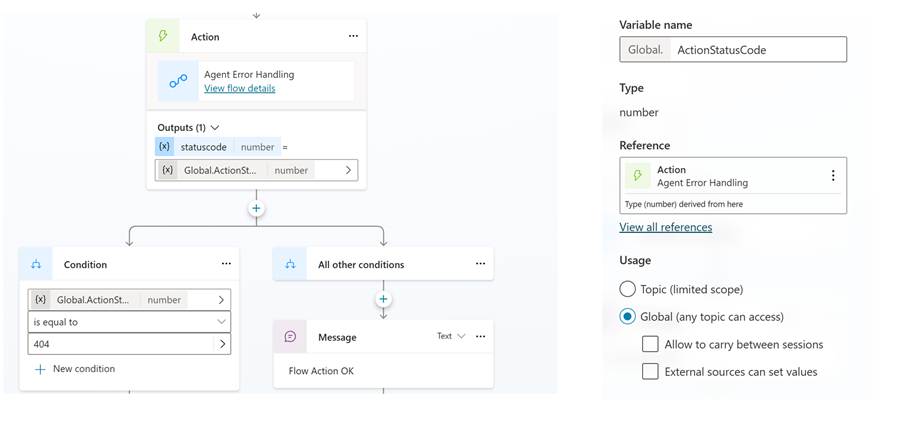
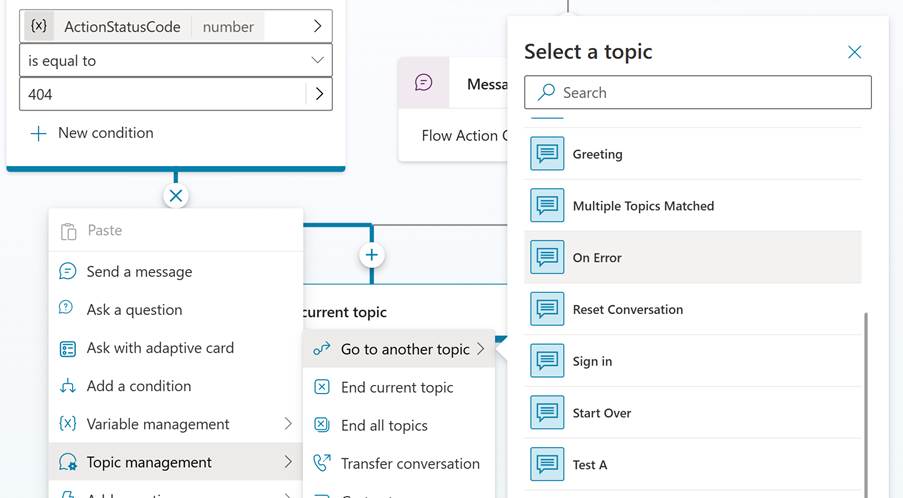
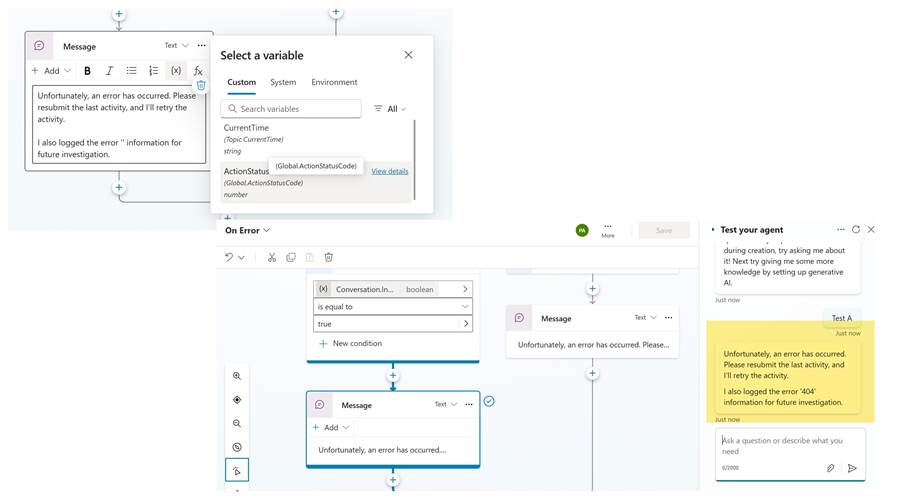
I’m getting the action output to a global variable here to use it inside the system topic. I added a condition that checks the status code and takes different actions if the code is an error. In the case of an error (code 404), you want to transfer the conversation to the On Error system topic, but you need to make the selection by adding a new action from the Topic management.
After this, I decided to add the global variable details to the answer we sent to the end-user. I just wanted to indicate that we have notified of the error and taken some action based on it.
Internal Login of the Error
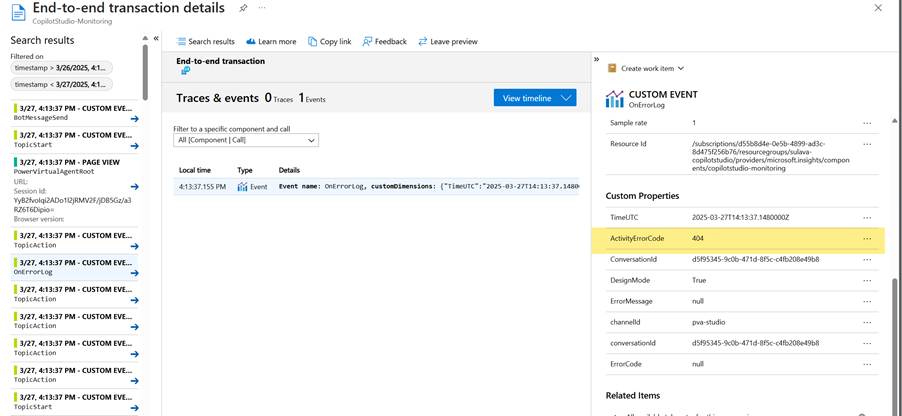
Although you might have an even more sophisticated error handling inside your Power Automate or API, I think it’s still worth logging the information at the agent level. The default On Error topic actually does this in the final steps, but you need to set up the Application Insight to see the details.
- Go to the Settings page for your agent, and select Advanced.
- Within the Application Insights section, populate the Connection string setting. See the Azure Monitor documentation to find out how to locate your connection string.
- Optionally, you can choose to enable one of the following settings.
- Log activities: If enabled, details of incoming/outgoing messages and events are logged.
- Log sensitive Activity properties: If enabled, the values of certain properties that could be considered sensitive on incoming/outgoing messages and events are included in logs.
More information: Capture telemetry with Application Insights – Microsoft Copilot Studio | Microsoft Learn
I decided to modify the On Error topic with a minor update, in which I sent the action status code to the logs.
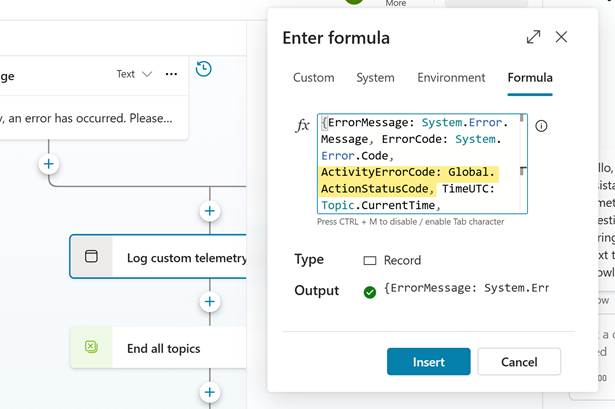
This can be done by selecting the Log custom telemetry event and opening its properties. I updated the formula to include the value of the action status code in the Global variables. This way, you can see more details in the Application Insight service. You should think through what information is logged based on your use case.




 Mikko Koskinen
Leave a comment